
Edit online
Make it in your browser, free
Type your text, download the video. No app needed.
On this page · 10 sections
To use an intro template in Sony Vegas, download the template, open the .veg project
file in VEGAS Pro, relink any missing files, change the text and logo, and render the intro as an MP4. This guide
walks through every step, from the first warning dialog to the render settings. It also shows a faster route: make
the intro online with your own text and logo, and drop the finished video into VEGAS as a transparent or green screen
overlay.
What is in a Sony Vegas template
Sony Vegas is called VEGAS Pro today, but templates are still shared as "Sony Vegas templates". Most
downloads are a .zip or .rar archive. Extract it to a folder you will not move later, for
example Videos/Templates/Intro name. Inside you usually find:
- A .veg file: the VEGAS project with the animation on the timeline.
- Media the project uses: background videos, images, sound effects and sometimes a placeholder logo.
- Sometimes a readme or text file with the fonts, plugins and VEGAS version the template needs. Read it first.
A .veg file opens in the VEGAS version it was saved in, or a newer one. If a template was made in a newer
version than yours, VEGAS will not open it. Many intros on Velosofy are made by YouTube creators for both VEGAS and
After Effects: on the download page you then get a separate Download for Sony Vegas link.
Most popular Sony Vegas templates



Step 1: open the project and relink files
Double click the .veg file, or open it in VEGAS with File → Open. If the creator saved the
project with file paths from their own computer, VEGAS cannot find the media and asks you where it is. Browse to the
folder you extracted and select the missing file. Once VEGAS finds one file, it usually finds the others in the same
folder.
Missing fonts
Text in a font you do not have is shown in a default font. Install the fonts from the readme before you open the project, or pick your own font when you edit the text in step 2.
Missing plugins
Simple 2D intros only use effects that come with VEGAS. Some templates use third-party plugins for glows, glitches or particles. Without them that part of the animation looks different or does not show. The description usually says which plugins are needed.
Project properties
Open File → Properties (Alt+Enter) and check the frame size and frame rate. For a YouTube intro, 1920×1080 at 30 or 60 fps is a good choice. Match it to the videos you will put the intro in.
Step 2: change the text
Text in VEGAS templates is usually generated media, made with the Titles & Text generator (or the older Legacy Text and ProType Titler in older templates). Each text event has a small Generated Media button on the event itself. Click it to open the text editor, select the placeholder text and type your own. You can change the font, size and color in the same window.
Keep your text about as long as the placeholder. The animation is made for a certain length, and a long channel name can run off screen or overlap the logo. Some templates have the same text on several tracks (for a shadow or a glow layer): change all of them.
Step 3: replace the logo
Find the placeholder logo in the Project Media window. Right click it and choose Replace, then select your own logo. VEGAS swaps the file in every event that uses it and keeps the animation, pan/crop and effects.
- Use a PNG with a transparent background, a JPG shows a box around your logo.
- If your logo has a different shape than the placeholder, click the Event Pan/Crop button on the event to fit it.
- Keep the file reasonably small, a 6000 pixel logo slows down the preview for nothing.
Step 4: preview
Press Space to play. If playback stutters, set the quality in the Video Preview window to Preview or Draft and Auto or Half size. This only affects the preview, not the rendered video.
Step 5: render the intro
- Select the part of the timeline with the intro as a loop region: drag across the top of the timeline, or double click an event to select its length.
- Choose File → Render As.
- Pick the format MAGIX AVC/AAC MP4 (in old Sony Vegas versions it is called Sony AVC/MVC or MainConcept AVC/AAC) and a template like Internet HD 1080p that matches your frame rate.
- Turn on Render loop region only, so you only render the intro.
- Give the file a name and click Render.
Save your edited project with File → Save As under a new name. Next time you only change what is new, or simply reuse the rendered MP4 at the start of every video.
The easier way: make the intro online
Not every template on the site has a .veg file, and fixing fonts, plugins and versions takes time. The
free Originals on Edit online skip all of that: you upload your logo, type
your name, pick colors, a font and a size in the browser, and download the finished video. The zip has a transparent
-alpha.mov (ProRes 4444), a -greenscreen.mp4 and the sound effects as a separate WAV.
Videos are free with a free account, and your first video every month has no watermark.
Logo Reveal Light Sweep
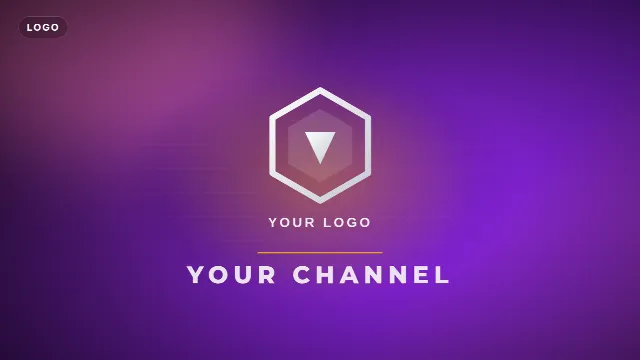
The Logo Reveal Light Sweep zooms your logo in out of a blur, sweeps a beam of light across it and brings your channel name up underneath. It is clean enough for any channel and five seconds long, a good length for an intro.
Free template
Logo Reveal Light Sweep
Glitch Logo Reveal
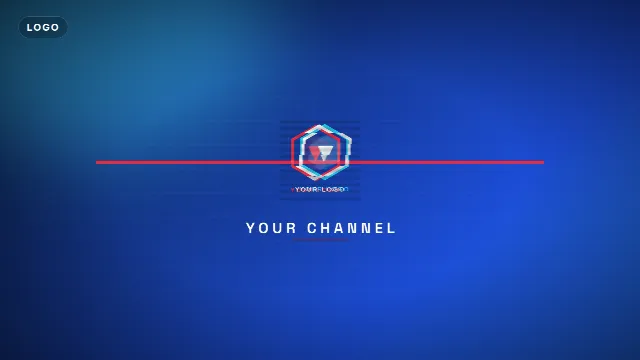
The Glitch Logo Reveal is the online version of the classic gaming intro: your logo glitches into view in red and cyan slices, locks into place and your channel name decodes underneath. For a louder gaming look, try the Energy Burst Gaming Logo Intro.
Free template
Glitch Logo Reveal
Add the video to VEGAS
Transparent .mov
- Import the
-alpha.movwith File → Import → Media, or drag it into the Project Media window. - Put it on a video track above your footage. In VEGAS, the track at the top covers the tracks below it.
- If you see black around the animation, right click the file in Project Media, choose Properties and on the Media tab set Alpha channel to Straight (unmatted).
How well ProRes with alpha plays depends on your VEGAS version. If the background stays black, use the green screen file below, it works in every version.
Green screen .mp4
- Put the
-greenscreen.mp4on a track above your footage. - Open the Video FX window, find the Chroma Keyer and drag it onto the event.
- Use the eyedropper next to the color to pick the green background in the preview.
- Adjust the Low threshold and High threshold until the green is gone and the edges look clean. Turn on Show mask only to check: the background should be fully black and the animation fully white.
A thin green line around the edges? Raise the thresholds a little at a time, or add a bit of Blur amount. More tips are in how to use green screen overlays.
Template or online intro?
| .veg template | Online Original | |
|---|---|---|
| What you edit | The full project in VEGAS | Text, logo, colors, font and speed in the browser |
| Fonts and plugins | You install what the template needs | Nothing to install |
| VEGAS version | Same or newer than the template | Any version, it is a video file |
| Sizes | What the creator made | 16:9, 9:16 and 1:1 |
| Best for | Changing the animation itself | A finished intro in a few minutes |
Common mistakes
- Moving the folder after opening the project, so VEGAS loses all files again. Keep the template in one place.
- Rendering the whole timeline with minutes of empty space after the intro. Use a loop region and Render loop region only.
- A green accent color in an intro you plan to key out: it disappears with the background.
- Overlay on the bottom track, so there is nothing below it to show through.
Browse all Sony Vegas templates, the intro templates or logo reveals. Using another editor? Read the guides for Premiere Pro, DaVinci Resolve, Filmora or After Effects.
Frequently asked questions
Edit online
Find a Sony Vegas intro
Free with a free account, in 16:9, 9:16 or 1:1.
Free .veg intro templates, 2D intros and logo reveals for Sony Vegas and VEGAS Pro.
Browse Sony Vegas templates