
Edit online
Make it in your browser, free
Type your text, download the video. No app needed.
On this page · 6 sections
A Minecraft intro is the short clip at the start of your video that shows your channel name, often in a blocky style over a shot of your world. You have two free ways to get one: download a ready-made template from the Minecraft templates on Velosofy, or make your own in the browser with a gaming template and put it over your own gameplay. This guide covers both, and how to add the intro in CapCut, Premiere Pro and DaVinci Resolve.
A quick note first: Minecraft is a trademark of Mojang. The templates here are fan and community work and Velosofy's own gaming templates, not official Minecraft assets.
Free Minecraft intro templates
The Minecraft topic page has around 60 templates uploaded by creators. Most are intros, in a few kinds:
- 2D intros for Sony Vegas: flat, fast intros with text and shapes, the classic Minecraft channel look.
- 3D intros for Cinema 4D: blocky 3D scenes with your name in block letters. You need Cinema 4D to render them.
- Panzoid intros: edited in the browser on Panzoid, no software to install.
- Banners, logos and GFX packs: channel art, server logos and thumbnail graphics in the same style.
These are free downloads from the creators who made them. Open a template, read its description and follow the download link. Some creators ask for credit in your video description, see how to credit a free template.
Popular Minecraft templates on Velosofy


New to project files? The steps for After Effects templates are in how to use After Effects templates, and they are much the same for other editors: open the project, replace the text, render.
What makes a good Minecraft intro
Short
Five seconds is enough. Long intros get skipped, and Minecraft viewers want to see the build, the episode or the challenge. Many channels open with the best moment of the video first, then the intro.
Your name or logo, clearly
The intro has one job: show whose video this is. Keep it to your channel name, and your logo if you have one. Skip long taglines, they are gone before anyone can read them.
A blocky style
Chunky block letters, pixel shapes and 8-bit sounds fit the game without copying its logo. Bold, square fonts read well over a busy world. Pick one accent color, such as grass green or a diamond blue, and use it in your thumbnails too.
Music and sound that hit
A whoosh, a hit on the reveal and a short riser make the intro feel finished. Only use music you have the rights to, or the sound that comes with the template.
Make one in the browser
No Cinema 4D, Blender or After Effects? Use a gaming template on Velosofy's Edit online. You type your name, pick colors, see a live preview and download the video. Every template below can be made in 16:9 for YouTube, 9:16 for Shorts and TikTok, or 1:1.
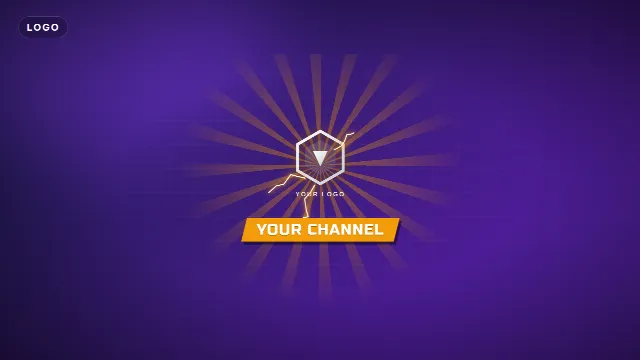
Energy Burst Gaming Logo Intro
The Energy Burst Gaming Logo Intro charges up an energy core that explodes into light rays and lightning, slams your logo onto the screen and shows your channel name (up to 22 characters) on a slanted banner. It is 5 seconds long with a riser, a big hit and zaps. Upload your logo as a PNG, JPEG or WebP, and set the accent to green for a grassy look.
Free template
Energy Burst Gaming Logo Intro
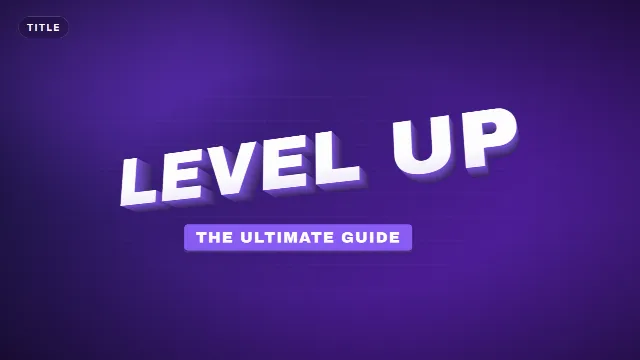
3D Extruded Title
For a blocky name without a logo, the 3D Extruded Title swings chunky 3D block letters in from the side, then a subtitle tag slides out below. The title takes up to 16 characters, the subtitle up to 30, so "BLOCKBUILDER" with "Survival · Episode 1" fits. It is 5 seconds long.
Free template
3D Extruded Title
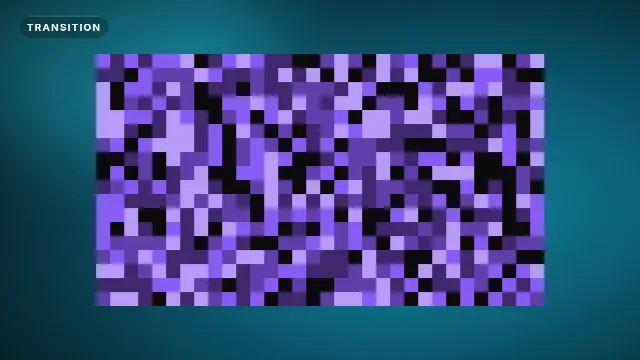
Pixel Dissolve Transition
The Pixel Dissolve Transition fills the screen with retro game blocks in shades of your accent color and dissolves them again, with an 8-bit sound going up and down. It is 1.5 seconds long: cut from the intro to the gameplay in the middle, when the screen is full.
Free template
Pixel Dissolve Transition
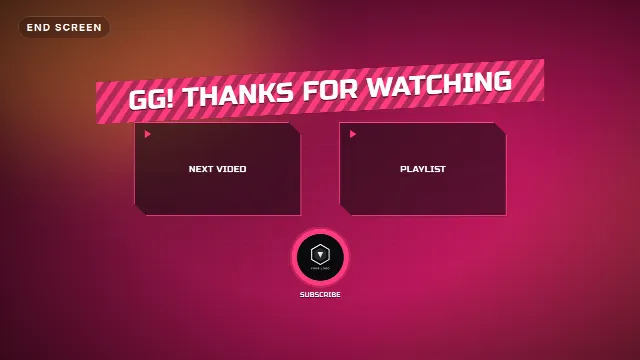
Gaming End Screen
Close the video with the Gaming End Screen: your logo, a title such as "GG! Thanks for watching", two labeled video slots and a subscribe circle. Line them up with YouTube's end screen elements, see the end screen guide.
Free template
Gaming End Screen
Other templates that fit a Minecraft video: the Gaming Kill Alert for big moments ("DIAMONDS!" with "+1 XP" counting up), the Glitch Logo Reveal and the Gaming Lower Third for your gamer tag. The steps for the logo intro are in how to make a gaming intro with your logo.
You download a zip with a transparent -alpha.mov, a -greenscreen.mp4 and the sound effects
as a separate WAV. Videos are free to make and download with a free account. Save your logo, name and colors as a brand kit, and they
are filled in for the next template.
Use your gameplay as the background
The online templates are transparent, so the background is up to you, and the best background is your own world.
- Record a slow flyover of your base or a view you like. Spectator or creative mode makes smooth camera moves easy.
- Hide the HUD so there is no hotbar or crosshair in the shot. In Java Edition, press F1.
- Record with OBS Studio or your console's capture button, at the same resolution as your video.
- Keep it calm: a slow pan or a sunset works better behind text than fast action.
Put the gameplay clip on the bottom track and the intro above it. Because the intro has no background of its own, your world shows through around the text and effects.
Add the intro in your editor
CapCut
Add your gameplay clip, then add the -greenscreen.mp4 as an overlay. On a phone, select it and tap
Cutout, then Chroma key; on desktop, open Video, then Remove BG, then Chroma key. Pick the green with the color picker. Choose an accent color that isn't green for these files, otherwise the key removes
it too. More in green screen overlays in CapCut
and how to make a YouTube intro in CapCut.
Premiere Pro
Import the -alpha.mov and place it on V2 above the gameplay on V1. The transparency works without any
extra steps. Put the pixel transition on V3 where the intro ends.
DaVinci Resolve
Drag the -alpha.mov onto a track above the gameplay. If you see a black background, right-click the
clip in the media pool, open Clip Attributes and set Alpha mode to Straight (try Premultiplied if the edges look off). More in
how to use transparent video overlays.
Checklist
- An intro around 5 seconds, the same in every video
- Your channel name or logo, big and readable
- A blocky font and one accent color you also use in thumbnails
- Your own gameplay as the background, recorded without the HUD
- The transparent .mov for Premiere Pro and DaVinci Resolve, the green screen .mp4 for CapCut
Browse all intros, search for gaming templates, or get a matching channel banner with the banner and thumbnail sizes.
Frequently asked questions
Edit online
Make your Minecraft channel intro online
Free with a free account, in 16:9, 9:16 or 1:1.
Or browse the free Minecraft intros, banners and logos made by creators.
Minecraft templates