Edit online
Make it in your browser, free
Type your text, download the video. No app needed.
On this page · 8 sections
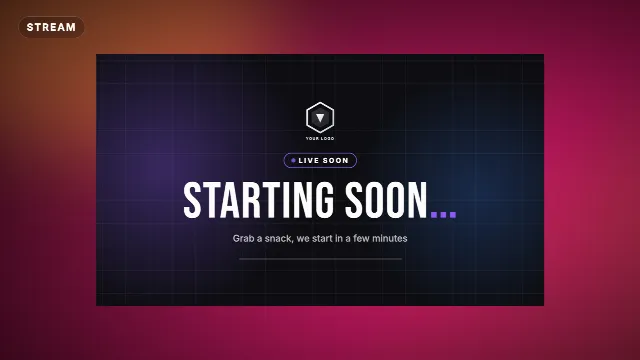
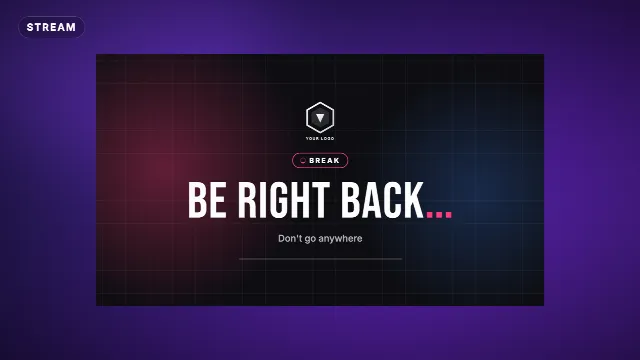
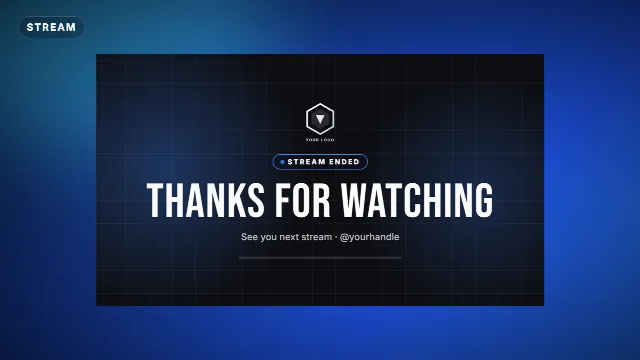
The first thing early viewers see is not you, it is your starting soon screen. The last thing they see is your ending screen, and in between there is the be right back screen while you grab a drink. Animated versions of these make a stream look planned and keep chat busy while you get ready. This guide shows how to set them up in OBS Studio as looping scenes, and how to add a follow card during the stream.
The three screens every stream needs
| Screen | When | What it says |
|---|---|---|
| Starting soon | The first minutes, while people join | Starting soon, today's topic, your handle |
| Be right back | Breaks | Be right back, how long roughly |
| Ending | After you say goodbye | Thanks for watching, when you are live next |
Use the same colors and font on all three, and the same as your overlay, so the stream looks like one package.
Step 1: make the screens
On Edit online you can customize three matching full screen scenes:
- Starting Soon Stream Screen: drifting glows, a moving grid and a loading bar, with a badge, a title and a line of your own.
- Be Right Back Stream Screen: a spinning loader and animated dots, made to loop during breaks.
- Stream Ending Screen: a calm thank you with your handle and a looping background.
Type your text, set the accent, text and background colors and pick a font. The preview updates as you edit.
Choose landscape 16:9 for a normal stream or vertical 9:16 for a vertical stream, then create the video. It renders
in under a minute and downloads as a zip with a .mov and an .mp4. For a full screen scene
either file works, because the screen fills the whole canvas.
Stream screens and overlays
 00:44
5 FREE Stream Stinger Transitions for OBS studio and Streamlabs OBS | w/ Sound Fx
 01:18
5 min Live Stream Starting Soon Screen - No copyright [Fully Animated & Free]
 08:35
4 FREE! Custom Stinger Transition After Effects Template with your LOGO (Salient Ed.)
 01:01
Apex Stream Graphics Pack | Free PSD | Overlay | Webcam | Banners
Step 2: one scene per screen
- In the Scenes dock, click + and name the scene Starting soon.
- In the Sources dock, click + → Media Source, create a new source and pick your video file.
- Tick Loop. Also tick Restart playback when source becomes active, so the animation starts from the beginning every time you switch to the scene.
- If the video does not fill the canvas, right click it and choose Transform → Fit to screen.
- Repeat for Be right back and Ending.
Check Settings → Video first: the base canvas should match the video, usually 1920×1080 for a landscape stream. New to scenes and sources? Read how to add a stream overlay in OBS Studio.
Step 3: add audio and extras
- Music: add a second Media Source with a music file you are allowed to stream, also on loop. Lower it in the Audio Mixer so it is background level.
- Mute your mic in these scenes, or you will broadcast yourself setting up.
- Chat: a chat browser source on the starting soon screen lets early viewers talk to each other while they wait.
- A countdown: if you start at a fixed time, a timer helps. The Loading Progress Bar or 10 Second Timer work for the final moments before you go live.
Step 4: switch smoothly
Use a Fade or a Stinger transition between scenes, set in the Scene Transitions dock. Give each scene a hotkey in Settings → Hotkeys, so you can switch without clicking around while live. Animated transitions can be used as a stinger.
A follow card during the stream
A follow reminder that slides in now and then works better than a static "follow" text that viewers stop seeing after a minute. The Twitch Follow Card shows your channel name and a second line such as "Live every Friday", a cursor clicks Follow and hearts fly out. You can place it left, center or right so it stays clear of your webcam and the game UI. For YouTube streams, the YouTube Subscribe Card does the same.
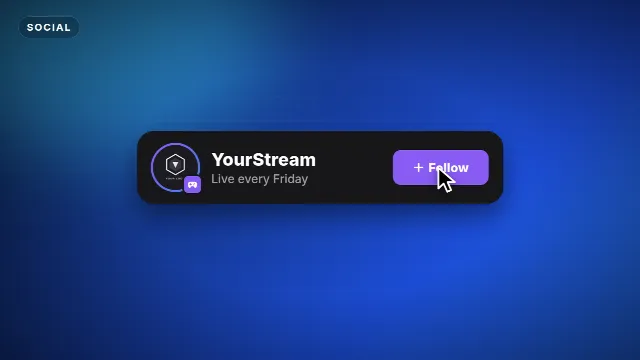
Free template
Twitch Follow Card
- Add the
-alpha.movas a Media Source in your gameplay scene, above the game capture. - Leave Loop off and tick Restart playback when source becomes active.
- Hide the source (click the eye). Every time you show it, the card plays once.
- Set a show and hide hotkey for it in Settings → Hotkeys.
If OBS shows a black box instead of transparency, use the -greenscreen.mp4 and add a
Chroma Key filter to the source (right click → Filters → Effect Filters → +), set to green.
Also show your socials
The Social Handle Bar and Now Playing Music Card work well as occasional overlays too. Keep only one animated card on screen at a time, so nothing fights for attention.
Checklist before you go live
- Starting soon, be right back and ending scenes, all looping
- Same colors and font as your overlay
- Mic muted in the break scenes, background music at a low level
- Hotkeys for every scene and for the follow card
- A test recording to check that everything loops without a jump
More for streamers: stream overlays, Twitch templates, OBS Studio templates and gaming templates.
Frequently asked questions
Edit online
Make your stream screens online
Free with a free account, in 16:9, 9:16 or 1:1.
Starting soon, be right back and ending screens with your text and colors.
Edit online for free