
Edit online
Make it in your browser, free
Type your text, download the video. No app needed.
On this page · 8 sections
To make podcast clips for YouTube Shorts, Instagram Reels and TikTok, pick a 20 to 60 second moment from your episode, reframe it from 16:9 to vertical 9:16, put a hook title on screen in the first second, and add big captions, a name tag for the speaker and a follow card at the end. This guide walks through each step, with templates you can edit online and steps for CapCut, Premiere Pro and DaVinci Resolve. For name tags in the full episode, read how to add name tags to interview and podcast videos.
Pick the right moment
A clip is not a summary of the episode. It is one moment that works without any context. While you listen back, write down the timestamps of moments like these:
- A strong opinion. "Most productivity advice is useless." People stop to agree or to argue in the comments.
- A short story with a beginning and an ending: the worst job interview, the day the business almost failed.
- A surprising number or fact. "We lost 80% of our customers in one week."
- A clear answer to a common question, the kind people type into search.
Aim for 20 to 60 seconds. Start right at the first interesting sentence, without "so, yeah" or the question that led up to it, and end on the punchline.
Reframe 16:9 to 9:16
Most podcasts are filmed wide. A vertical clip needs a new frame. Set your project to 9:16, 1080×1920 and choose one of two layouts:
| Layout | How | Best for |
|---|---|---|
| Speaker crop | Scale the footage up and center it on whoever is talking. Cut to the other person when they answer. | One main speaker, solo episodes, a story |
| Split screen | Duplicate the footage, crop one copy to each speaker and stack them: one on the top half, one on the bottom half. | Back and forth conversations, reactions |
Keep the eyes in the upper third of each frame and leave room in the middle for the captions.
A hook title in the first second
Viewers decide in about a second whether to keep watching. A title at the top of the screen tells them why they should. Write it as the promise of the clip, not the name of the episode: "Why he turned down $1M" works, "Episode 42 with Sam" does not. More openers are in YouTube Shorts intros: hook viewers in the first second.
Hook Title Card (Shorts)
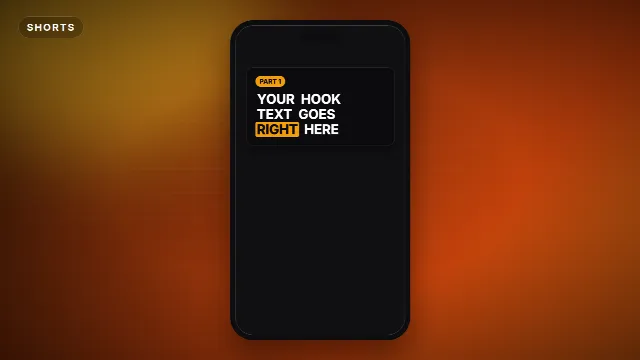
The Hook Title Card (Shorts) is a dark card at the top of the frame where your hook pops in word by word, with one highlighted keyword. It has a small Label (up to 14 characters, "PART 1" by default, nice for "EP 42" or your show name), the Hook text (up to 60 characters) and the Highlighted word, which has to be one of the words in your hook.
Free template
Hook Title Card (Shorts)
Two other hooks work well for podcasts. The Question Hook (Shorts) shows a speech bubble with a label and a question of up to 80 characters, perfect when the clip answers a question. The Stop Scrolling Hook is a big line of up to 18 characters with a second line underneath, for the boldest moments.
Captions, big and a few words at a time
Many people watch with the sound off. Captions keep them there. For the whole clip, use the automatic captions in your editor: CapCut and Premiere Pro both generate them from the audio, and DaVinci Resolve Studio can too. Always read them back, because names and numbers are often wrong.
- Big and bold, with an outline or shadow so they stay readable over any background.
- Two or three words at a time, with the spoken word highlighted.
- In the middle of the screen, between the two speakers in a split screen, never at the very bottom where the app's buttons and title sit.
Pop Captions (Shorts)
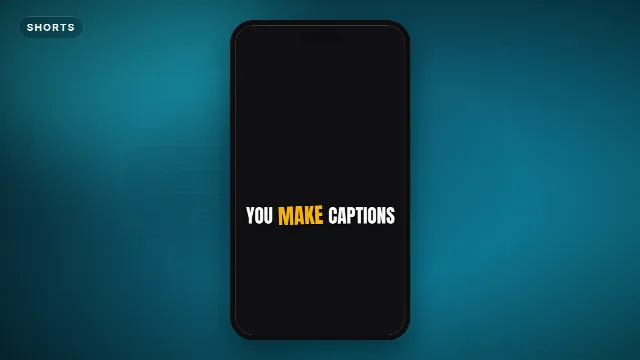
For the key sentence of a clip, the Pop Captions (Shorts) template shows a caption of up to 90 characters three words at a time, in bold outlined letters, with the spoken word lit up in your accent color. Use it for the line you want people to remember, and match your auto captions to the same font and color. Tips on text styles for vertical video are in text overlays for TikTok, Reels and Shorts.
Free template
Pop Captions (Shorts)
Show who is speaking
Someone who finds your clip in the feed has never heard of your guest. A name tag in the first few seconds answers "who is this?" before it ends up in the comments. Render it in the 9:16 vertical size, so it fits the frame instead of getting cut off.
Podcast Guest Lower Third
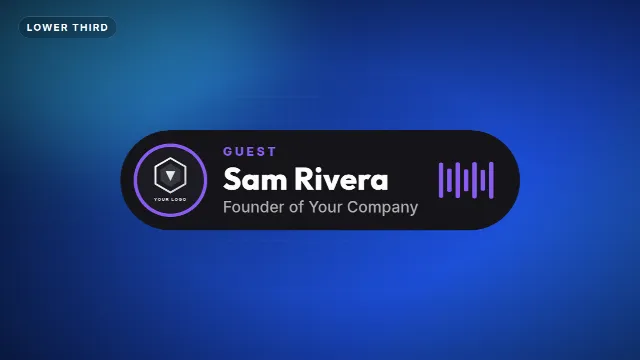
The Podcast Guest Lower Third is a rounded card with a microphone badge and a live audio meter. You can upload your show logo, and type a Label (up to 14 characters, "Guest" by default), the Name (up to 26) and a Title (up to 38). In the vertical size the bottom part of the frame is kept free for the app's own buttons and captions.
Free template
Podcast Guest Lower Third
Prefer a different look? The Interview Name Tag has a name, a role of up to 40 characters and a label, also in 9:16. In a split screen, place the tag on the half of the person it belongs to. And if you want people to find the guest, add the Social Handle Bar with their handle.
More Shorts templates
End with a follow card
A good clip makes people want the full episode. Tell them where to find it in the last seconds, while they are still watching.
Follow For More (Shorts)
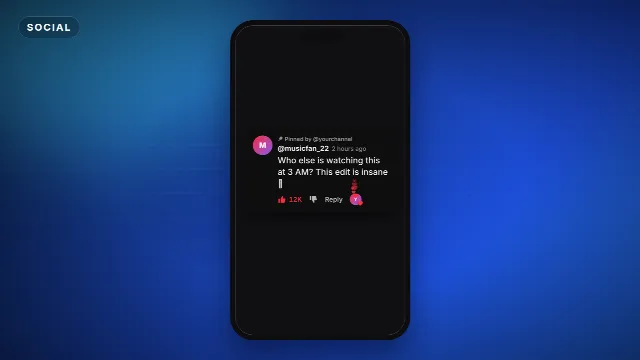
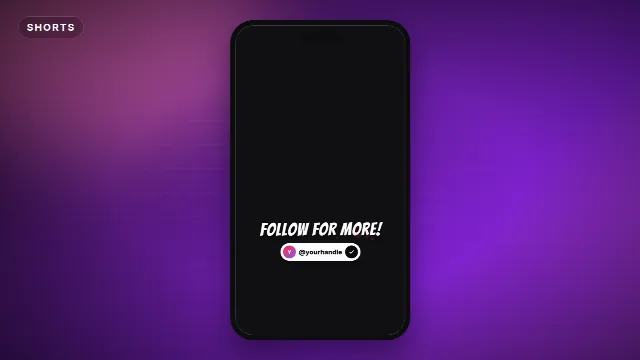
The Follow For More (Shorts) template shows a big line of up to 24 characters with your handle and a plus button that turns into a check. Change the text to "Full episode on YouTube" or "New episode every Monday". For TikTok, the TikTok Follow Card has your name, handle and a Follow button that gets tapped. More ideas in how to add a follow card to your video.
Free template
Follow For More (Shorts)
Put it together in your editor
Each template downloads as a zip with a transparent -alpha.mov and a -greenscreen.mp4.
Videos are free to make and download with a free account. Create the overlays once per show, and for each new clip only change the hook,
the name and the caption.
CapCut (phone or desktop)
- Start a new project, import the episode and set the aspect ratio to 9:16.
- Trim to your moment, then scale and position the footage on the speaker. For a split screen, add the episode a second time as an overlay and give each copy one half.
- Generate auto captions, correct them and pick a big bold style.
- Add the hook, name tag and follow card
-greenscreen.mp4files as overlays, and remove the green with Chroma key. See how to use green screen overlays in CapCut. - Export in 1080p.
Premiere Pro and DaVinci Resolve
- Create a 1080×1920 sequence or timeline and drop the episode in. Use the Scale and Position controls to frame the speaker, or crop two copies for a split screen.
- Add captions with the built-in transcription or import a subtitle file, and style them big in the middle.
- Place the
-alpha.movoverlays on tracks above the footage: hook at 0:00, name tag a second or two in, follow card at the end. They are transparent, no keying needed. - Export as H.264 at 1080×1920.
Posting rhythm
- Three to five clips per episode. Cut them all in one session while the episode is fresh.
- Spread them out: one a day, or a few per week, until the next episode.
- Post the same clip on all three platforms, with a caption and hashtags written for each.
- Keep the style the same: one hook card, one caption style, one name tag. After a few clips, people recognize your show before they see the name.
Find more vertical overlays among the Shorts templates, lower thirds and podcast templates.
Frequently asked questions
Edit online
Make your podcast clip overlays
Free with a free account, in 16:9, 9:16 or 1:1.
Hook titles, captions, name tags and follow cards in 9:16, edited in your browser.
Browse Shorts templates