Edit online
Make it in your browser, free
Type your text, download the video. No app needed.
On this page · 9 sections
Getting the YouTube banner size and thumbnail size right is the easiest way to make a channel look professional. The problem: YouTube shows the same banner on TVs, laptops and phones, and crops it differently on each. This guide gives you every size you need, explains the safe area, and shows a simple workflow in Canva.
All YouTube image sizes at a glance
| Image | Size | Notes |
|---|---|---|
| Banner (channel art) | 2560 × 1440 | Safe area 1546 × 423, minimum 2048 × 1152, max 6 MB |
| Thumbnail | 1280 × 720 | 16:9, at least 640 wide, JPG, PNG or GIF, under 2 MB |
| Profile picture | 800 × 800 | Shown as a circle |
| Video watermark | 150 × 150 | Small transparent PNG works best |
The banner safe area explained
Your banner is 2560×1440, but almost nobody sees all of it. On TVs the whole image shows, on desktop a wide strip, and on phones only the center. The part that is visible everywhere is the 1546×423 safe area in the middle.
- Inside the safe area: channel name, logo, tagline, upload schedule.
- Outside it: background only, colors, patterns and images that can be cropped without losing meaning.
A good test: cover everything outside the safe area with your hand. If the banner still makes sense, it works on every device.
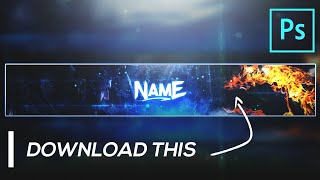
Banner templates on Velosofy



Thumbnails that get clicked
Thumbnails are shown tiny in search and suggestions, often on phones. Design for that size, not for your monitor.
- One subject: a face, an object or a result, big and clear.
- Few words: three to four words in a bold font, or none at all.
- Contrast: a bright subject on a darker background stands out in a white or dark YouTube interface.
- Avoid the bottom right: the video length badge covers that corner.
- Stay consistent: the same fonts and colors across videos make your uploads recognizable.
Thumbnail templates


Making a banner in Canva
- Start a YouTube banner design. Canva has a ready-made YouTube banner size, so the canvas is already 2560×1440.
- Mark the safe area: add a rectangle of 1546×423 in the center as a guide. Delete it before exporting.
- Add your background across the full canvas.
- Place your name and logo inside the safe area guide.
- Export as PNG or JPG and check the file size before uploading.
Thumbnails work the same way with Canva's YouTube thumbnail size (1280×720). Save your thumbnail as a template so every new video only needs a new image and title.
Common banner mistakes
- Text near the edges: it disappears on phones. Everything readable goes in the safe area.
- Too much information: a name, a short tagline and maybe an upload schedule is enough.
- Low resolution images: stretched photos look blurry on big screens and TVs.
- A different style than your videos: viewers should recognize your thumbnails from your banner.
Banner ideas by channel type
| Channel | Idea |
|---|---|
| Music and visualizers | Your logo with a subtle spectrum or waveform behind it |
| Gaming | Game-inspired background, your gamer tag large and centered |
| Tutorials | Clean background, name plus a one line promise of what viewers learn |
| Vlogs | A photo of you with your name and upload days |
The profile picture
Your profile picture appears next to every video and comment, very small. A simple logo or a clear face works best. Upload it at 800×800 and check it as a small circle, if you cannot recognize it at that size, simplify it.
Uploading and checking
Upload the banner in YouTube Studio under the channel customization (branding) settings. YouTube shows a preview per device, check that nothing important is cut off. Then look at your channel on your phone to be sure.
Use the same look everywhere
Your banner, thumbnails, profile picture and intro should look like one brand. Reuse your fonts and colors in your intro, your outro and even your stream overlay. Templates for Canva and Photoshop are a quick way to start.
Frequently asked questions
Edit online
Free banner and thumbnail templates
Free with a free account, in 16:9, 9:16 or 1:1.
Channel art and thumbnails you can edit in Photoshop, Canva and more.
Browse banner templates