Edit online
Make it in your browser, free
Type your text, download the video. No app needed.
On this page · 7 sections
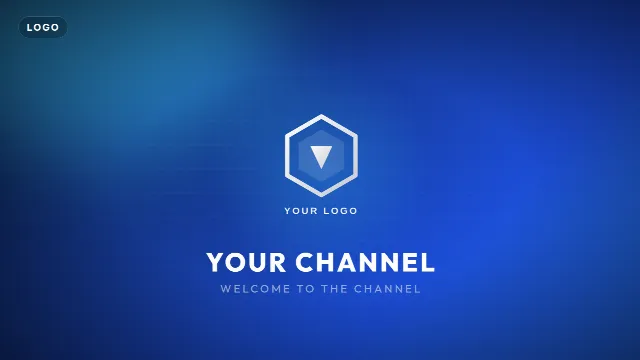
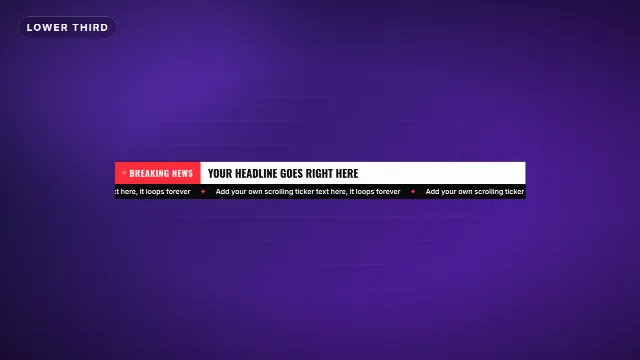
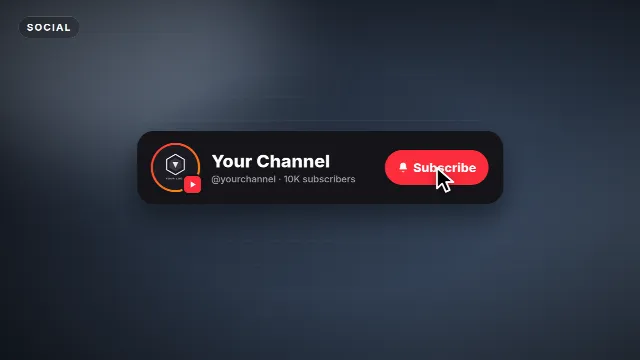
The simplest free alternative to After Effects templates is a template you edit in the browser: type your text, pick colors and a font, and download a finished video. On Edit online you do that without After Effects, without plugins and without a subscription, and you get a transparent video that works in any editor. It covers the graphics most people buy After Effects templates for: intros, logo reveals, lower thirds, titles, transitions, end screens and stream overlays. For complex scenes and full control, an After Effects template is still the better pick. This guide explains both.
Why people look for an alternative
After Effects templates look great, but using one takes more than a download:
- A subscription. You need After Effects installed, and Adobe only offers it as a subscription.
- A capable computer. Previews and renders are heavy on older laptops.
- Missing fonts, footage and plugins. Many templates ask you to install fonts or third-party effects before they look like the preview.
- A learning curve. Finding the right composition among dozens of layers is the hardest part for a beginner.
- No phone workflow. If you edit in CapCut or Alight Motion, you cannot open an
.aepfile at all.
If all you need is a name bar, a title or a subscribe card with your own text, that is a lot of setup.
How Edit online works
- Go to Edit online and open a template. There are about 100 Velosofy Originals.
- Type your text. The live preview in the browser updates as you type.
- Pick the colors: an accent color, the text color and, on some templates, a background or plate color.
- Choose a font from 38 fonts and set the animation speed.
- Choose the size: 16:9 landscape, 9:16 vertical or 1:1 square. Most templates have all three, some only one or two.
- Create the video. It renders on our server in about a minute.
- Download the zip with a free account. It holds a transparent
-alpha.mov(ProRes 4444), a-greenscreen.mp4, and the sound effects, both mixed into the video and as a separate WAV.
Videos are free to make and download with a free account. The templates are free to use in personal and commercial videos.
After Effects templates or Edit online?
| After Effects template | Edit online | |
|---|---|---|
| Software | After Effects, often plugins too | A browser |
| What you change | Everything: text, footage, timing, animation, effects | Text, colors, font, speed, size, and a logo on logo reveals |
| Time to a result | Depends on the template, setup and render time | A few minutes |
| Output | Whatever you render | Transparent .mov and green screen .mp4, with sound |
| Works on a phone | No | Yes, the green screen file works in CapCut, Alight Motion and KineMaster |
| 3D, particles, complex scenes | Yes | Only what the template already does |
When After Effects templates are still the better pick
Be honest about what you need. Pick an After Effects template when:
- You want full control over timing, easing and every layer.
- The template has to hold your own footage or photos, like a slideshow or a multi-scene promo.
- You need real 3D, camera moves through a scene or heavy particle effects.
- You are building a long opener with several scenes that must match a client's brand guide.
- You already know After Effects and want to change the animation itself.
Velosofy has plenty of free After Effects templates for that. New to them? Read how to use After Effects templates first, it covers missing fonts, footage and rendering.
Popular free After Effects templates


What you can make online
| You need | Category | Try |
|---|---|---|
| A channel intro | Intros | News Intro Opener, Countdown 5 to GO |
| Your logo animated | Logo reveals | Gold Shimmer, Glitch, Minimal Line Draw |
| A name and title | Lower thirds | Corporate, Podcast Guest |
| An animated title | Text and titles | Cinematic Trailer, Kinetic Words |
| A cut between scenes | Transitions | Circle Zoom, Glitch Slices |
| An end screen | Outros | Minimal End Screen, Subscribe Button Click |
| Vertical hooks and stickers | Shorts | Hook Title Card, Part 2 Sticker |
| Stream screens and alerts | Stream overlays | Starting Soon, Twitch Follow Card |
Put it in your editor
The download is a normal video file, so there is nothing to install:
- Premiere Pro, DaVinci Resolve, Final Cut Pro: import the
-alpha.movand place it on a track above your footage. The background is transparent. Details in how to use transparent video overlays. - CapCut, Alight Motion, KineMaster: add the
-greenscreen.mp4as an overlay and remove the green with a chroma key. See green screen overlays in CapCut. - OBS Studio: add the video as a media source in a scene, for example for a starting soon screen or an alert.
Tips for a result that looks custom
- Use your brand colors. Set the accent color to your main brand color and keep the text white or very dark for contrast.
- Use one font family. Pick the same font for your intro, lower thirds and end screen so the video feels like one design.
- Keep the text short. Templates are designed for a name, a title or a few words. Long sentences get small.
- Match the speed to the edit. Faster for gaming and shorts, slower for interviews and documentaries.
- Render the right size. Choose 9:16 for TikTok, Reels and Shorts instead of cropping a landscape file.
- Skip green. The green screen file is keyed on green, so a green accent would disappear with it.
Checklist
- Simple graphic with your text? Use Edit online.
- Own footage, 3D or full control? Use an After Effects template.
- Desktop editor: the
-alpha.mov. Phone editor: the-greenscreen.mp4. - Same colors and font across intro, lower thirds and end screen.
- Right size for the platform before you render.
Start with Edit online, or browse After Effects templates, Premiere Pro templates and CapCut templates.
Frequently asked questions
Edit online
Skip After Effects for simple graphics
Free with a free account, in 16:9, 9:16 or 1:1.
Intros, lower thirds, titles and end screens, customized in your browser.
Edit online for free