
Edit online
Make it in your browser, free
Type your text, download the video. No app needed.
On this page · 7 sections
To add name tags to an interview or video podcast, make one short transparent name tag video per person, all in the same style, and place each one on a track above your footage the first time that person speaks. With a template on Edit online you set the colors and font once, then only change the name and role for each guest. This guide is about the interview and podcast workflow: several guests, a recurring show, clips for Shorts and chapters. For the basics of lower thirds, read how to make a lower third.
Pick one style for the whole show
A recurring show should look the same every episode. Choose one template and keep it. These work well for interviews and podcasts:
| Show | Template | Fields |
|---|---|---|
| Interviews, street interviews, documentaries | Interview Name Tag | Name, role, label |
| Video podcasts | Podcast Guest Lower Third | Logo, label, name, title |
| Company interviews, webinars, panels | Corporate Lower Third | Logo, name, title |
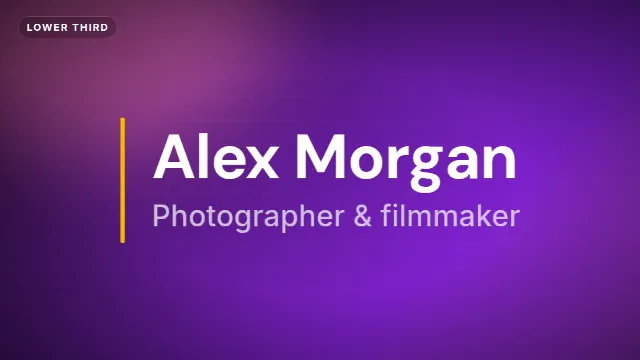
| Calm, conversational shows | Minimal Clean Lower Third | Name, title |
| News and live talk shows | Live News Headline | Headline, topic, second line, live label, location, time |
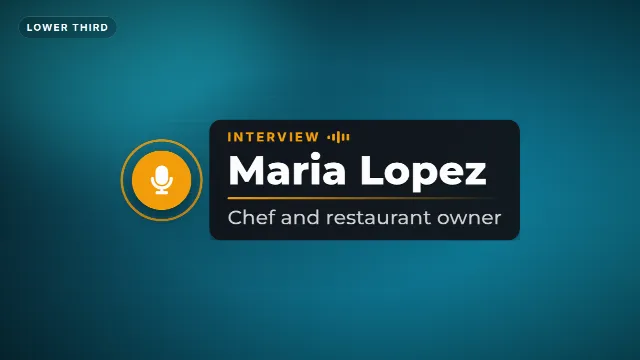
- The Interview Name Tag has a microphone badge with moving sound bars, the name sliding out and the role underneath. The small label says "Interview" by default; change it to "Guest", "Host" or your show name.
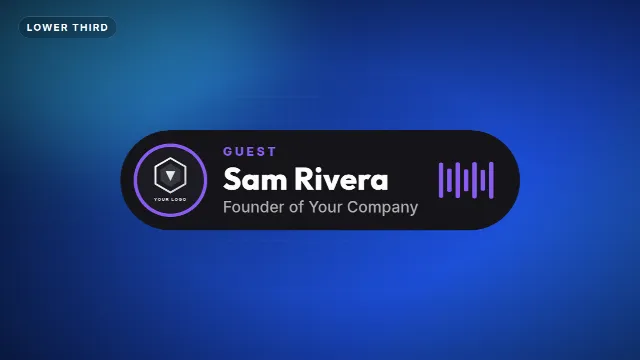
- The Podcast Guest Lower Third is a rounded card with a microphone badge and a live audio meter. You can upload your show logo.
- The Corporate Lower Third is a white name plate with an accent stripe and room for a company logo.
- The Live News Headline is for the topic of a segment, not a single name: a headline with a second line such as "With Jane Doe, economist".
The four name tag templates also have a Position setting: left, center or right.
More name tags and lower thirds


Make one name tag per person
- Open your template and set it up for the show: accent color, text color, background color where there is one, font, position and speed.
- Write those settings down: the color codes and the font name. That way every future episode matches.
- Type the host's name and role and create the video.
- Change only the name and role for the first guest and create again. Repeat for every guest.
- Download each zip. It contains a transparent
-alpha.mov, a-greenscreen.mp4and the sound effects as a separate WAV. Name the files after the person, for exampletag-maria-lopez.mov.
Each render takes about a minute. Videos are free to make and download with a free account. All of them are free to use in personal and commercial videos.
Name and role: what to write
- Name as the person wants it written. Ask before recording, and check the spelling.
- Role that explains why this person is in the video: "Chef and restaurant owner", "Author of Slow Money", "Ran 100 marathons". Not their full CV.
- Label for the show or type of guest: "Guest", "Host", "Episode 42". Keep it short.
Placing name tags in a multi-guest episode
- First time each person speaks. Let them say a sentence first, then bring the tag in. Nobody reads a name while the shot is still changing.
- One at a time. If two people speak right after each other, wait until the first tag has left before the second one comes in.
- On their side of the frame. In a two-shot, use the Position setting: left for the person on the left, right for the person on the right. Render a version per side if needed.
- Again after a break. In a long episode, show the tags again after an ad break or at a new chapter, for viewers who skipped ahead.
- Leave the sound effects in or out. Over a quiet conversation, a whoosh can be too much. The sound is in the video, so lower or mute the clip audio in your editor if you want it silent.
Desktop editors use the -alpha.mov on a track above the footage. In CapCut and other mobile apps, use the
-greenscreen.mp4 with Chroma key. Step by step instructions for Premiere Pro, DaVinci Resolve and CapCut
are in the lower third guide.
Chapters for long episodes
Long interviews are easier to follow with chapters. Two templates help:
- Chapter Title: a big chapter number, a label and a short title, to open each new topic.
- Video Chapters Progress Bar: four chapter names in a bar at the top of the frame, with the current chapter lit up. Make one version for each chapter you are in.
Use the same chapter names in your YouTube description as timestamps, starting at 0:00, so they also show up in the YouTube player.
Clips for Shorts, TikTok and Reels
Most people now discover podcasts through short clips. A clip without a name tag leaves viewers asking "who is this?" in the comments.
- Render the same name tag again in the 9:16 vertical size. All the templates in the table above have it.
- Put it in the first seconds of the clip, not at the end.
- Keep it above the bottom part of the screen, where captions, the title and buttons sit. See text overlays for TikTok, Reels and Shorts.
- For a strong one-liner from the episode, try the Quote Card: the quote fades in word by word and is signed with the speaker's name.
Design tips for talking-head videos
- Stay out of the face. Check every camera angle: the tag must not cover a chin or a microphone.
- Use your show colors for the accent, and keep the text color light on a dark background, or dark on a light one.
- Clean fonts for names. A decorative font makes names harder to read, especially unusual ones.
- No green in your colors if you use the green screen file.
Checklist
- One template and one set of colors for the whole show
- A name tag for the host and for every guest, spelled right
- Each tag on the first time that person speaks, one at a time
- Vertical versions for Shorts clips
- Chapters for long episodes
Browse all lower thirds and podcast templates.
Frequently asked questions
Edit online
Make a name tag for every guest
Free with a free account, in 16:9, 9:16 or 1:1.
Same style, new name: type it, render it, download a transparent video.
Open the Interview Name Tag