
Edit online
Make it in your browser, free
Type your text, download the video. No app needed.
On this page · 5 sections
A notification or comment pop up is a small animated card that appears over your video: a YouTube comment, a stack of phone notifications, a "new video" alert or a chat message. It shows something happening on a screen without a screen recording, and it is one of the most used overlays in Shorts, TikTok and reaction videos. On Velosofy you can make them free in the browser: open a template, type your text and download a transparent video with sound. This guide covers the four pop up templates, what to type in them and how to add them in your editor.
The four pop ups
Comment Pop Up
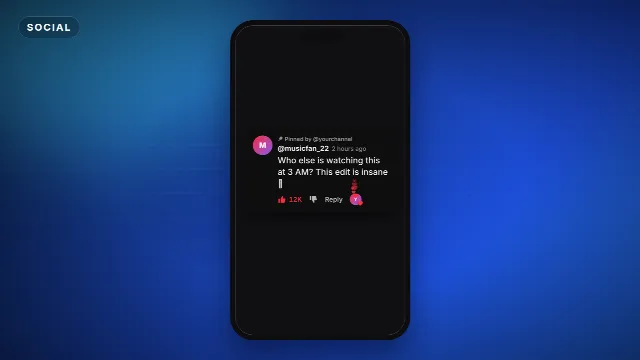
The Comment Pop Up is a pinned comment card. It pops up, a cursor likes it and the count jumps, then a heart from the creator lands on it. You type the username (up to 26 characters), the comment (up to 110), the likes, how long ago it was posted and the "Pinned by" line. It runs for 7 seconds.
Free template
Comment Pop Up
Use it to answer a comment in a new video ("Replying to this comment…"), to show what viewers said, or as the hook of a Short.
Notification Stack
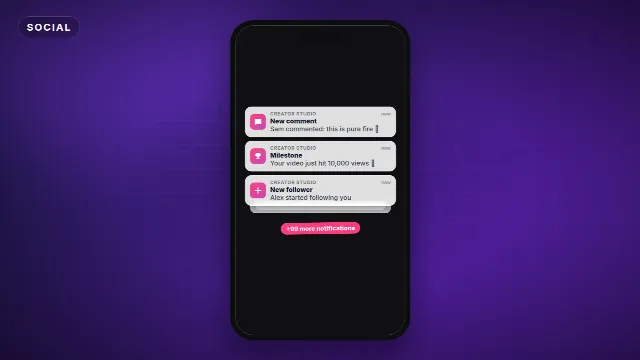
The Notification Stack slides phone notifications in one after another: a new follower, a views milestone and a comment, then a pile of more. You type the app name, the three notifications (up to 48 characters each) and the last line, such as "+99 more notifications". It runs for 7 seconds, with a chime for every notification.
Free template
Notification Stack
It fits "my video blew up" stories, giveaways, milestones and the before and after of a channel.
New Video Notification
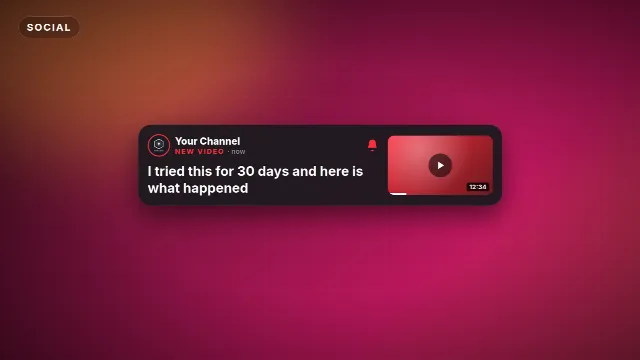
The New Video Notification drops a phone style notification in from the top with a ringing bell, your channel logo, the title of your new video and a play thumbnail. You upload your logo and type the channel name, the video title (up to 70 characters) and a label such as "New video". It is 5.5 seconds long.
Free template
New Video Notification
Put it in the last seconds of a video or in a Short that promotes your newest upload.
Chat Voice Message
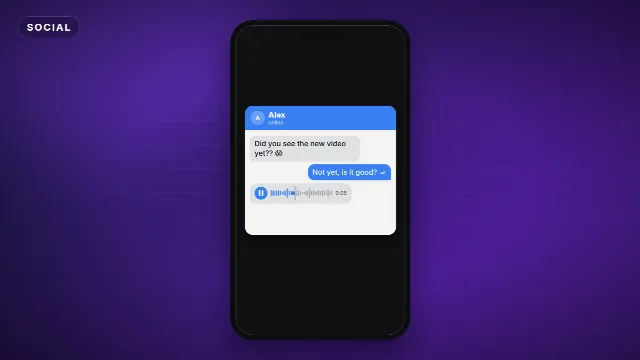
The Chat Voice Message is a chat conversation. Their message comes in, you type a reply, then a voice message arrives and plays with a moving waveform. You fill in the contact name, a status such as "online", their message and your reply (up to 60 characters each) and the length of the voice message. It runs for 10 seconds.
Free template
Chat Voice Message
It works for storytime videos, skits and "my friend texted me" moments. It looks like a messaging app such as WhatsApp or iMessage without copying one, so you can use it on any platform.
Which pop up for which video
| Video | Try |
|---|---|
| Replying to a viewer, reaction videos | Comment Pop Up |
| "My video blew up", milestones, giveaways | Notification Stack |
| Promoting your newest upload | New Video Notification |
| Storytime, skits, a text from a friend | Chat Voice Message |
| Asking viewers to comment | The Comment Below Prompt |
Make it in the browser
- Open one of the templates above and go to the editor on its page, or browse Edit online.
- Type your text. The live preview updates as you type, emoji included.
- Pick the accent color, the text color and the background color of the card. A white card reads like a phone, a dark one like YouTube in dark mode.
- Choose a font and set the animation speed.
- Choose a size: 9:16 vertical, 1:1 square or 16:9 landscape.
- Create the video. It renders on our server in about a minute.
With a free account you download a zip with a transparent -alpha.mov (ProRes 4444), a
-greenscreen.mp4 and the sound effects, also as a separate WAV. Free videos have a small "Made with
velosofy.com" label, or you can make one without it for one credit.
More Shorts overlays
Add it in your editor
Premiere Pro, DaVinci Resolve and Final Cut Pro
- Unzip the download and import the
-alpha.mov. - Put it on a track above your footage, at the moment the comment or message should appear.
- Keep the whole clip, so the card animates in and out.
CapCut and other phone apps
- Add the
-greenscreen.mp4with Overlay → Add overlay and stretch it to fill the frame. - Tap Cutout → Chroma key, pick the green and raise Intensity until it is gone.
More detail in how to use transparent video overlays and green screen overlays in CapCut.
Tips for pop ups that work
Write like a real person
A comment in lower case with one emoji looks real. A perfect sentence looks like an ad. Keep it short: a comment of one or two lines reads in the time the card is on screen.
Time it with your voice
Bring the card in just before you read it out or react to it. With a notification stack, let each notification land on a beat or a word.
Mind the safe area in vertical videos
The bottom and right side of a Short are covered by the caption and the buttons. Render the vertical size, which keeps the card inside the frame, and check it above the buttons. See text overlays for TikTok, Reels and Shorts.
Be honest about made up messages
A chat or comment pop up makes anything look real. When the message is staged, for a skit or a reenactment, say so, and don't use real names of people who didn't write it.
Checklist
- The right pop up for the moment: comment, notifications, new video or chat
- Short, natural text
- In on the word or beat it belongs to
- Inside the safe area in vertical videos
- Transparent .mov for desktop editors, green screen .mp4 for phone apps
Browse all Shorts templates, outros, or search for notification templates.
Frequently asked questions
Edit online
Make your pop up online
Free with a free account, in 16:9, 9:16 or 1:1.
Type the comment, notification or chat message and download it with sound.
Edit online for free