
Edit online
Make it in your browser, free
Type your text, download the video. No app needed.
On this page · 7 sections
On TikTok, Instagram Reels and YouTube Shorts, text on screen does a lot of the work. Many people scroll with the sound off, so the hook, the captions and the call to action have to be readable at a glance. And they have to sit where the app's buttons do not cover them. This guide covers the text overlays that work in vertical video, where to place them, and how to make your own in 9:16.
The safe zone
The vertical players of all three apps draw their interface over your video. What gets covered:
| Area | Covered by |
|---|---|
| Bottom | Username, caption, sound or music label, and on some apps a progress bar |
| Right side | Like, comment, share and profile buttons |
| Top | Tabs like Following and For You, search and the status bar |
As a rule of thumb, keep important text out of roughly the bottom fifth and the top tenth of the frame, and leave a margin on the right. The middle of the screen, slightly above center, is safe on every app. The exact layout changes between app versions and devices, so preview your video in the app before you post.
Overlays that work in vertical video
Hook titles
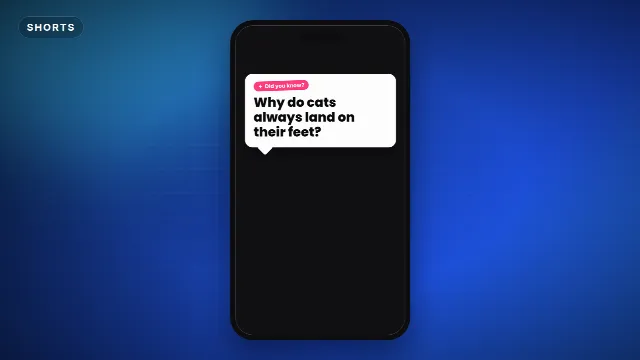
The first second decides if someone keeps watching. A big hook line on screen gives viewers a reason to stay before they hear a word. The Hook Title Card pops your words in one by one with a highlighted keyword, the Question Hook asks the question in a speech bubble, and Wait For It builds suspense with a progress bar. More on hooks in how to hook viewers in the first second.
Pop captions
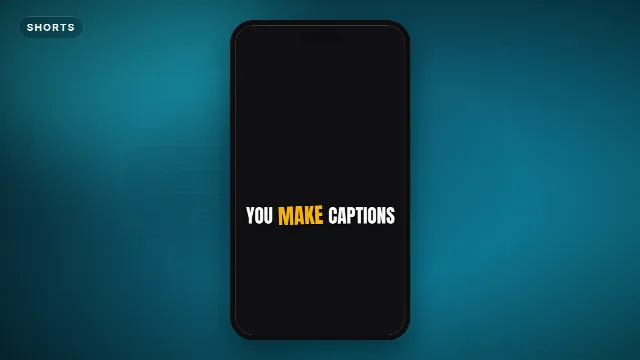
Captions that appear a few words at a time, with the spoken word highlighted, keep the eye moving and make sound-off viewing work. The Pop Captions template does this with bold outlined text. Use them for a key sentence or a punchline. For a whole video full of captions, your editor's auto captions are faster, styled to match.
Free template
Pop Captions (Shorts)
Follow cards
A short follow reminder near the end, or right after the payoff. Use the TikTok Follow Card, Instagram Follow Card or Follow For More with your own handle.
Part 2 stickers and comment prompts
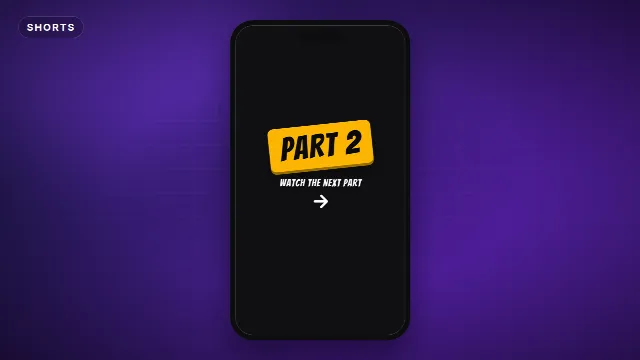
Series do well on vertical platforms. A Part 2 Sticker tells viewers there is more and sends them to your profile. The Comment Below Prompt asks for a comment, and the Like Share Save Buttons and Link In Bio Badge cover the other calls to action. One call to action per video is enough.
Free template
Part 2 Sticker (Shorts)
Shorts, TikTok and Reels templates
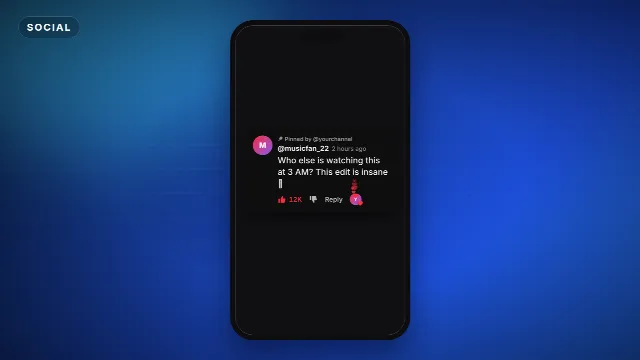
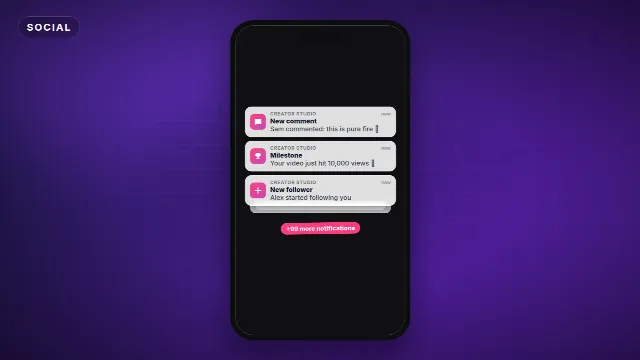
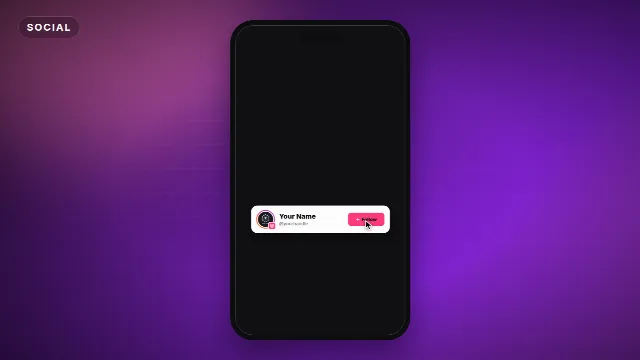
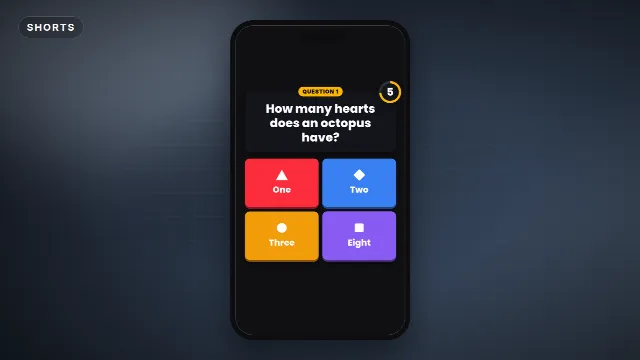
Make them with your own text
- Go to Edit online and filter on Shorts or Subscribe & social.
- Open a template and type your hook, caption or handle. The preview updates as you type.
- Choose an accent color and text color that match your brand, a font, and the speed. Fast suits hype content, slower gives more time to read.
- Pick Vertical 9:16. Many of these templates also come in square and landscape if you post the same clip elsewhere.
- Create the video. It renders on our server in under a minute, and you download a zip with a free account.
Add them in your editor
Phone apps like CapCut, VN and KineMaster use the -greenscreen.mp4 from the zip: add it as an overlay,
stretch it to fill the frame and remove the green with a chroma key. Step by step in
how to use green screen overlays in CapCut.
Editing on a computer? Use the transparent -alpha.mov instead, see
how to use transparent video overlays.
Readability on a phone
- Big and bold. Condensed and heavy fonts like Anton or Bebas Neue are easy to read on a small screen.
- Outline or plate. White text with a dark outline or on a dark card reads on any footage.
- Few words at a time. Three to six words per line, split longer sentences.
- Hold it. Leave text on screen long enough to read twice, especially the hook.
- Do not stack. Your own captions, the app's caption and a sticker all at once is too much. Pick one place for text.
A simple structure
- 0 to 1 second: hook title on screen.
- The middle: the content, with pop captions on the key lines.
- The payoff: the result, the answer or the punchline.
- The end: one call to action, a follow card or a part 2 sticker.
Post once, use everywhere
All three apps use 9:16 at 1080×1920, so one export works on TikTok, Reels and Shorts. Keep text in the shared safe zone and avoid platform-specific wording in the video itself (say "follow for more" rather than naming one app), so the same file fits all three. Use the platform-specific follow cards when you post to one app only.
More for vertical video: Shorts and vertical templates, TikTok templates, CapCut templates and animated text title styles.
Frequently asked questions
Edit online
Vertical text overlays with your words
Free with a free account, in 16:9, 9:16 or 1:1.
Hooks, captions, follow cards and stickers, customized online in 9:16.
Edit online for free