
Edit online
Make it in your browser, free
Type your text, download the video. No app needed.
On this page · 5 sections
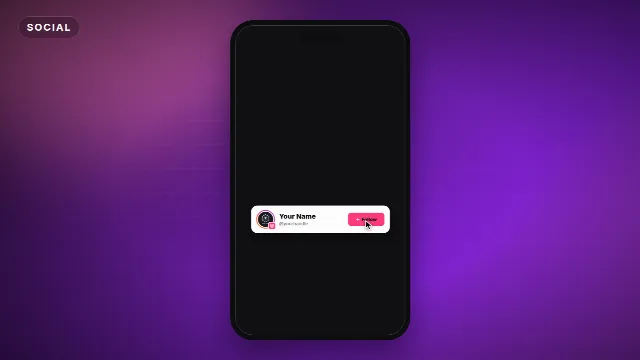
To add a follow card or social handle to a video, make a short animated overlay with your name, handle and a Follow button, then place it on a track above your footage. On Velosofy you can make one for free in the browser: there are follow cards for Instagram, TikTok, X, Twitch and Kick, a Discord invite card, and simple handle bars. You upload your avatar, type your handle, pick colors and download a transparent video. This guide shows which one to use, how to add it in your editor, and when to show it.
The follow cards
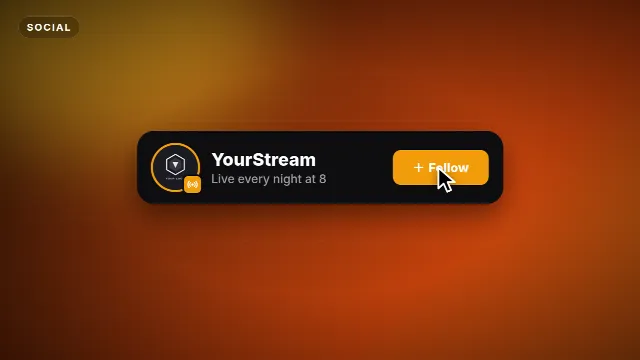
Each platform card shows your avatar, a name, a second line and a button. A cursor taps the button and small icons burst out (hearts, stars for Discord, lightning bolts for Kick), then the card leaves. The whole animation takes 5.5 seconds. You can change:
- Avatar or logo: upload your profile picture or logo (PNG, JPG or WebP).
- Name: your name, channel name or server name.
- Handle or second line: your @handle, or a line like "Live every Friday".
- Button: Follow, Join, or any short word.
- Colors: the accent, the text and the background of the card.
- Position: left, center or right.
- Speed and size: 16:9 landscape, 9:16 vertical or 1:1 square.
Which card for which video
| Video | Try |
|---|---|
| Reels and Instagram videos | Instagram Follow Card |
| TikTok and other vertical videos | TikTok Follow Card |
| Commentary, news and tech videos | X Follow Card |
| Streams and stream highlights | Twitch Follow Card or Kick Follow Card |
| Growing a community | Discord Server Invite Card |
| Several platforms at once | Social Handle Bar |
| A small handle while you are live | Live Handle Pill |
| The end of a Short | Follow For More (Shorts) |
| Pointing to a link | Link In Bio Badge |
The simpler options
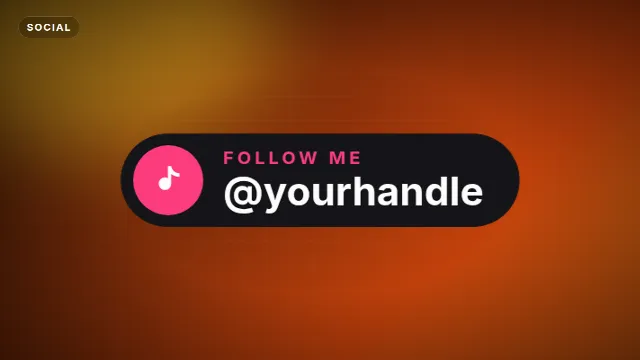
- The Social Handle Bar is a rounded bar with a label and your handle, while the icon rolls through camera, music, video and gaming. Good when you use the same handle everywhere.
- The Live Handle Pill is a small pill with a pulsing live dot that expands to show your handle and a status like LIVE NOW.
- Follow For More (Shorts) is a big line of text with your handle and a plus button that turns into a check.
- The Link In Bio Badge is a bouncy badge with a link icon and an arrow pointing down, with your own text.
These four also have a font choice from 38 fonts. The platform follow cards use a fixed font that matches their app style.
Follow cards on Velosofy


Make it in the browser
- Open the card on Edit online and upload your avatar or logo.
- Type your name, handle and button text. Copy your handle exactly as it appears in the app.
- Pick the colors and the position. Put the card on the side where it does not cover your face.
- Choose the size that matches your video.
- Create the video. It renders on our server in about a minute.
With a free account you download a zip with a transparent -alpha.mov (ProRes 4444), a
-greenscreen.mp4 and the sound effects, also as a separate WAV. Videos are free to make and download with a free account.
Tip: save your name, handle, colors and logo as a brand kit in your settings. They are then filled in automatically in every template, so making a card for each platform takes a minute.
Add it to your video
CapCut, Alight Motion, KineMaster
- Add the
-greenscreen.mp4with Overlay → Add overlay and stretch it to fill the frame. - Tap Cutout → Chroma key, pick the green and raise Intensity until it is gone.
- Move it to the moment you mention your account.
More detail in how to use green screen overlays in CapCut.
Premiere Pro, DaVinci Resolve, Final Cut Pro
Import the -alpha.mov and put it on a track above your footage. The background is already
transparent. If you see black instead of your video, see
how to use transparent video overlays.
OBS Studio
For live streams, add the -alpha.mov as a Media Source and show it every so often. A
Twitch or Kick card at the start of a stream and after a raid works well. See
how to add a stream overlay in OBS Studio.
Tips that get more follows
Show it after a payoff
People follow when they want more of what they just saw. Show the card right after a good tip, a punchline or a result, not in the first seconds. On Shorts, the last seconds are a natural spot.
Say it out loud
A short spoken line with the card ("I post one of these every week, follow so you do not miss it") works better than the card alone. Give a reason, not just a request.
One platform per video
Asking people to follow you on four apps at once splits their attention. Pick the platform that matters most for this video. On TikTok, ask for a TikTok follow. Use a cross platform card when the video lives somewhere else, like a YouTube video that should grow your Instagram.
Stay in the safe area
In vertical videos, the bottom and right side of the screen are covered by captions, buttons and the profile picture of the app. Render the 9:16 size and keep the card in the middle part of the screen. More on this in text overlays for TikTok, Reels and Shorts.
Readable colors
A white card with dark text, or a dark card with white text, reads on any footage. Use the accent for the button. Avoid green: the overlay also comes as a green screen file, and green parts would be keyed out with the background.
Checklist
- Your real avatar and the exact handle
- One platform per video, the one that matters most
- Shown after a payoff, with a spoken line
- In the safe area, not over your face
- Transparent .mov for desktop editors and OBS, green screen .mp4 for phone apps
Find more in Shorts templates, stream overlays and follow templates. For YouTube, see how to add an animated subscribe button.
Frequently asked questions
Edit online
Make your follow card online
Free with a free account, in 16:9, 9:16 or 1:1.
Add your avatar, name and handle, pick colors and download an animated follow card.
Edit online for free