
Edit online
Make it in your browser, free
Type your text, download the video. No app needed.
On this page · 7 sections
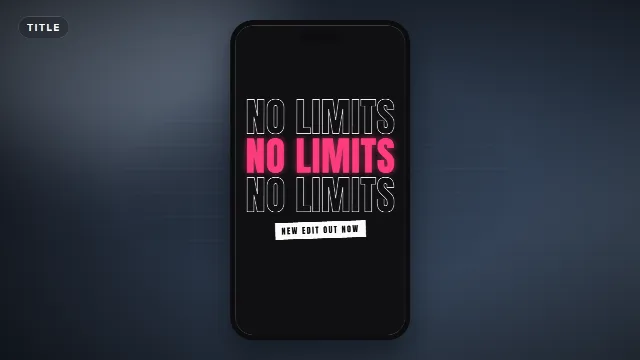
The 3 layer text edit is one word stacked three times: an outline copy on top, a solid copy in the middle and another outline copy below, sliding in and bouncing to the beat. You can build it by hand in Alight Motion or CapCut by duplicating a text layer, giving the copies an outline, offsetting them and adding keyframes on the beat. Or you can skip the setup: the Three Layer Text template on Velosofy does the whole effect with your own word, color and font, and gives you a transparent or green screen video to drop into your edit.
What makes the effect work
- Three copies of the same word, stacked tightly with little space between them.
- Contrast between the layers. The middle one is solid and colored, the outer ones are outlines only.
- Movement from different directions. The outer layers come in from opposite sides, the middle one punches in.
- Beat sync. Small bounces, pushes or color flashes land exactly on the kicks of the song.
- A heavy font. Condensed bold fonts like Anton or Bebas Neue stack well and stay readable as outlines.
Make it in Alight Motion
Menus move around between app versions, so the steps below describe what to do rather than exact button names.
- Add a text layer with your word in capitals. Pick a bold condensed font and center it.
- Style the middle layer: a solid fill in your accent color. This is the one viewers read.
- Duplicate the layer twice. Move one copy up and one copy down so the three lines touch or nearly touch.
- Turn the copies into outlines. Add a stroke or border in white to both copies, then make their fill transparent so only the stroke shows.
- Animate the entrance with keyframes. On the top copy, set a keyframe off screen to the left and one in place a few frames later. Do the same for the bottom copy from the right. Scale the middle layer from large to normal size.
- Add the beat bounce. Play the music, find the kicks on the audio waveform and add small keyframes there: the outlines push a few pixels away from the middle and come back, the middle layer scales up slightly.
- Add easing to the keyframes so the moves start fast and settle softly, instead of moving at a constant speed.
Many creators share this setup as a preset or project link. If you find one you like, see how to import Alight Motion presets and projects.
Make it in CapCut
- Add text with your word, choose a bold font and turn on a stroke in the text style options.
- Duplicate the text twice so you have three text clips on separate tracks, stacked on top of each other.
- Style the layers. Give the middle one a solid colored fill. For the top and bottom copies, keep a white stroke and lower the fill opacity, or use a dark fill, so they read as outlines.
- Position them in the preview: one copy above the middle line, one below.
- Mark the beats. CapCut can add beat markers to a music track, or you can add markers by hand on the kicks.
- Add keyframes on the position and scale of each layer: slide the outlines in from opposite sides at the start, then add small bounces on each beat marker.
Doing this by hand takes a while, especially the beat keyframes. It is worth it if you want every move custom. If you just want the look, use a template.
The shortcut: the Three Layer Text template
Three Layer Text is a six second animation: your word appears three times as outline, solid and outline. The outlines slide in from opposite sides, the middle slams in from big, a small line pops in underneath, and from there everything bounces on the beat while the middle flashes between your accent and text color. The bounces line up with thump sound effects in the video.
Free template
Three Layer Text
- Open the template on Edit online.
- Type your main text (up to 16 characters) and the small line under it (up to 30).
- Pick an accent color for the solid middle layer and a text color for the outlines.
- Choose a font and the animation speed. At normal speed the bounce is every half second (120 BPM). Faster speeds make the tempo faster.
- Choose 9:16 vertical for TikTok and Reels, or square or landscape.
- Create the video and download the zip with a free account.
In CapCut, Alight Motion or KineMaster, add the -greenscreen.mp4 as an overlay and remove the green with
a chroma key. In a desktop editor, use the transparent -alpha.mov. To sync it to your own song, mute the
built-in sound, then slide the overlay until the first bounce lands on a kick. Use the speed setting to get closer to
your song's tempo.
More animated titles
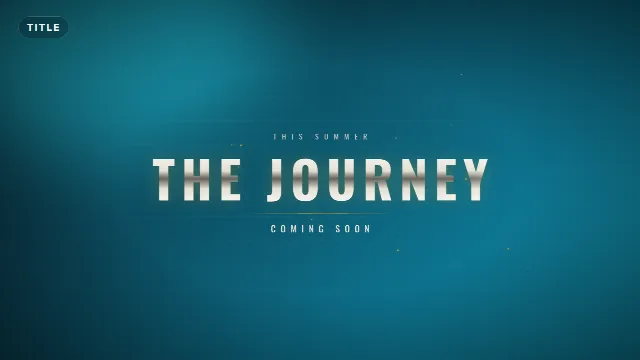
Which text effect for which edit
| Edit | Try |
|---|---|
| Trending stacked text on a beat | Three Layer Text |
| One huge word on a drop | Split Impact Title |
| A short phrase, word by word | Kinetic Words Title |
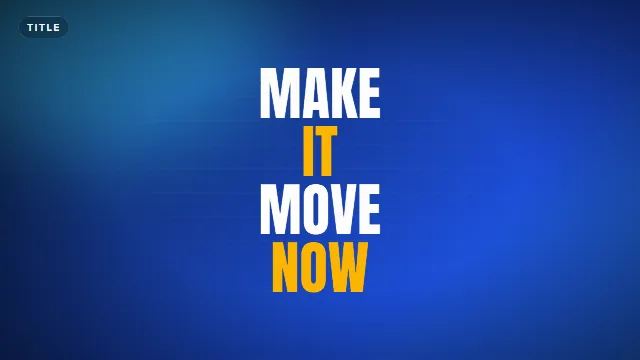
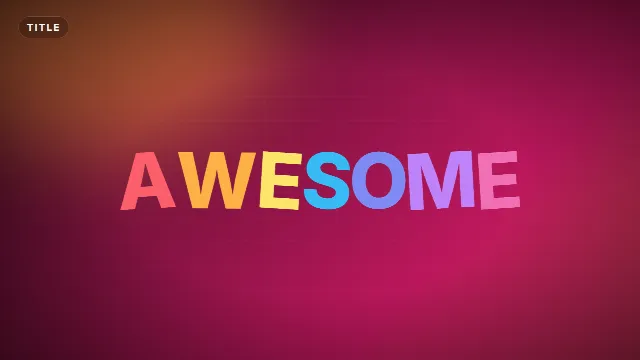
| Fun, colorful, playful | Letter Pop Title |
| Gaming and dark edits | Glitch Title |
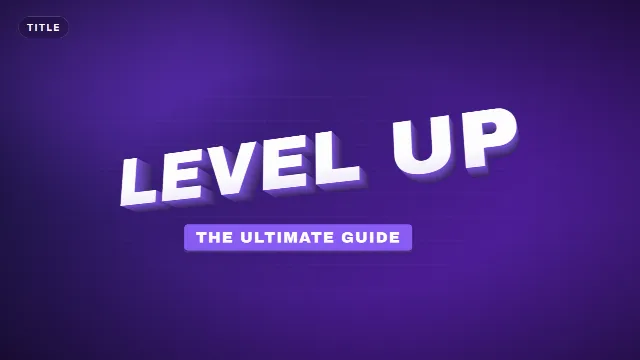
| Chunky title with depth | 3D Extruded Title |
Design tips
- Short words. One word or two short ones. The text scales to fit the width, so long words get small.
- Strong contrast. A bright accent like pink, orange, yellow or red for the middle and white outlines reads on most footage.
- Avoid green for the template colors. The green screen file is removed with a chroma key, and green text would disappear with it.
- Place it in the middle. On TikTok and Reels the bottom and right side are covered by the app. See text overlays for TikTok, Reels and Shorts.
- Do not overuse it. The effect works best on one moment: the hook, a drop or the reveal.
Checklist
- One short word in a heavy font
- Solid middle layer, outline layers above and below
- Entrance from opposite sides, bounces on the beat
- Placed in the safe middle of a 9:16 frame
- No green in the colors when you use the green screen file
More for edits: Alight Motion templates, CapCut templates and all text and title templates.
Frequently asked questions
Edit online
Make 3 layer text in a minute
Free with a free account, in 16:9, 9:16 or 1:1.
Type your word, pick a color and a font, download it in 9:16.
Open Three Layer Text