
Edit online
Make it in your browser, free
Type your text, download the video. No app needed.
On this page · 7 sections
A WhatsApp status is one of the easiest ways to reach the people who already have your number: family, friends and customers. A short moving video gets more attention than a plain photo. This guide shows which templates work well as a status, how to make one with your own words on your phone, and ideas for festivals and for small businesses.
Status video basics
- Vertical works best. People watch statuses with the phone upright, so a 9:16 video fills the whole screen.
- It disappears after 24 hours. A status is for today: a greeting, an offer, news. Post a new one when you have something new.
- Keep it short. Around 30 seconds or less. One message per status is easier to read than many.
- Big text in the middle. The top of the screen shows your name and the progress bars, and the bottom has the reply box. Keep words in the center.
- Make it readable without sound. Many people watch quietly, so put the message on screen.
Templates for festivals and greetings
Festival greetings are the most shared statuses of the year. Every template below supports the vertical 9:16 size, and you type your own text before you download.
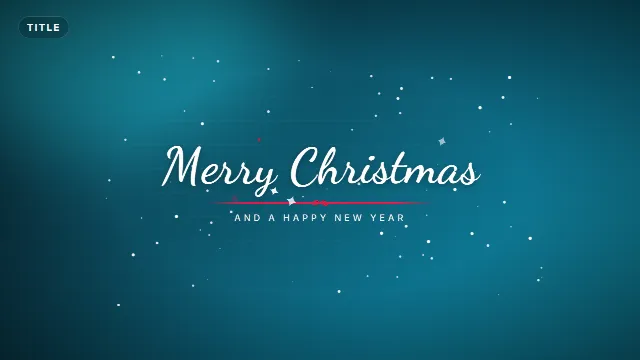
Merry Christmas Snow Title
The Merry Christmas Snow Title shows a big title (up to 28 characters) with a small line below it (up to 36 characters), with falling snow. It is 6 seconds long and has optional sound effects with a bell. Write "Merry Christmas" with "from the Sharma family", or your shop name in the small line. For more Christmas ideas, read how to make a Christmas intro.
Free template
Merry Christmas Snow Title
New Year Countdown
The New Year Countdown counts down from 10 and then fireworks burst and your message pops in, for example "Happy New Year!" (up to 24 characters). The top line can say "Countdown to 2027" or anything up to 28 characters. Post it on 31 December so it is still there at midnight.

Free template
New Year Countdown
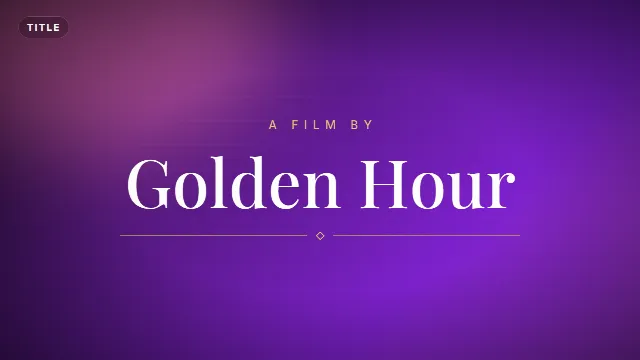
Elegant Serif Title
For Eid, Diwali, a wedding or an anniversary, the Elegant Serif Title is a calm choice: a title of up to 22 characters, like "Eid Mubarak", with a small line above it of up to 24 characters, like "From our family". You choose the colors, so gold on dark green or white on deep red both work. For birthdays, the Handwritten Marker Title writes "Happy Birthday!" with a marker.
Free template
Elegant Serif Title
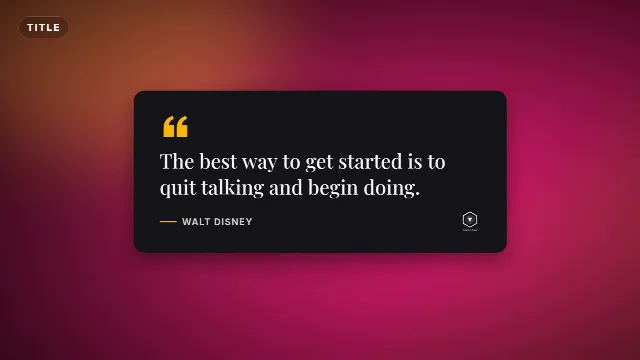
Quote Card
Good morning messages and quotes are classic status content. The Quote Card fades in your quote word by word (up to 140 characters) and signs it with the author's name (up to 30 characters). It is 7 seconds long, long enough to read the full quote.
Free template
Quote Card
Templates for small businesses
Many shops, home bakers, tailors and tutors use their status as a free shop window. The people who see it already know you, so a clear offer works well.
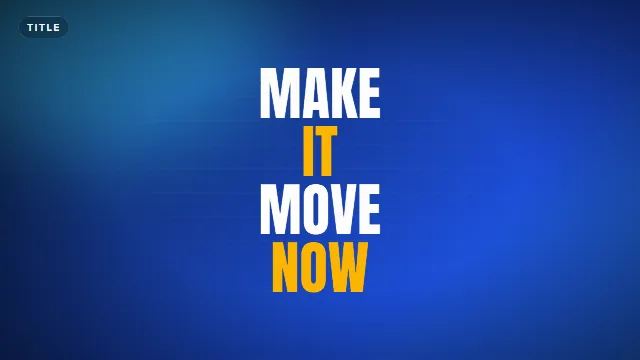
Kinetic Words Title
The Kinetic Words Title slams your words in one by one from alternating sides. It takes up to 40 characters, which is perfect for a short offer like "BIG SALE THIS WEEKEND" or "NEW STOCK JUST ARRIVED". Use your brand color as the accent.
Free template
Kinetic Words Title
Corporate Lower Third
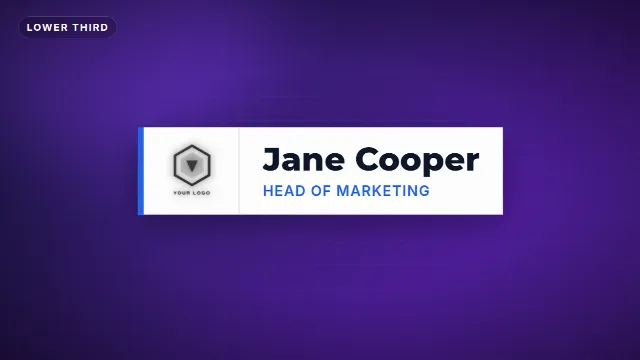
The Corporate Lower Third is a clean white name bar with an accent stripe. Use the name line (up to 28 characters) for your shop and the title line (up to 40 characters) for your opening hours, like "Open 9 am to 9 pm, Monday to Saturday". Put it over a photo of your shop front or a new product. More styles in how to make a lower third.
Free template
Corporate Lower Third
Social Handle Bar
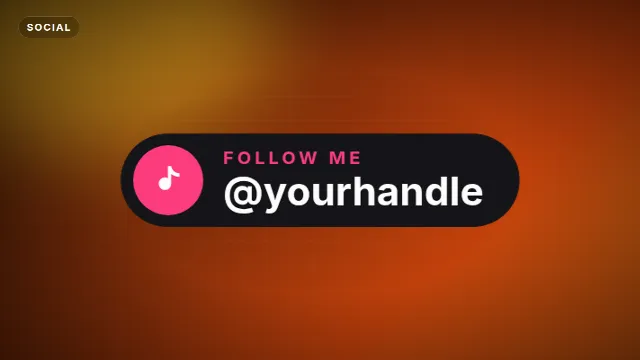
The Social Handle Bar has a short label (up to 18 characters) and a handle (up to 28 characters). Write "Order now" with your phone number, or "Follow us" with your Instagram handle, so people know how to reach you after the status ends.
Free template
Social Handle Bar
Countdown 5 to GO
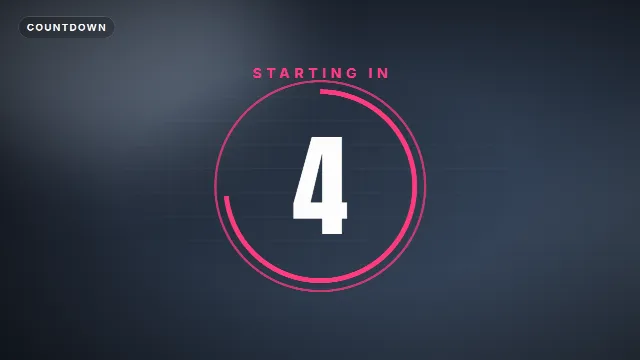
Opening a new shop or starting a sale tomorrow? The Countdown 5 to GO counts down from 5 and ends on your final word (up to 10 characters), like "OPEN!" or "SALE!". The label above can be up to 20 characters, for example "Sale starts in". More countdown ideas in how to add a countdown timer to a video.
Free template
Countdown 5 to GO
A few simple ideas for a business status:
- Today's offer: a kinetic title with the discount over a photo of the product.
- Opening hours: a lower third with your hours over your shop front, especially before holidays when hours change.
- New product: a short clip of the product with its name as a title.
- How to order: a handle bar with your number at the end of the video.
Vertical templates for your status
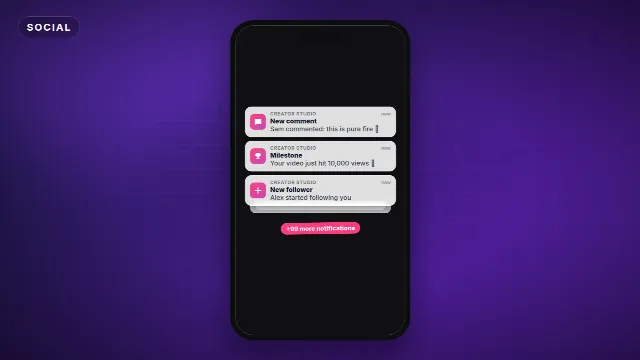
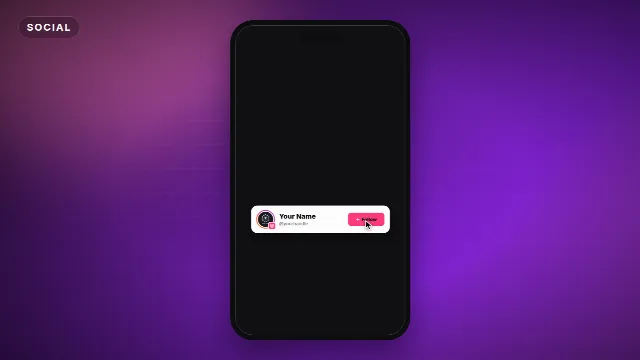
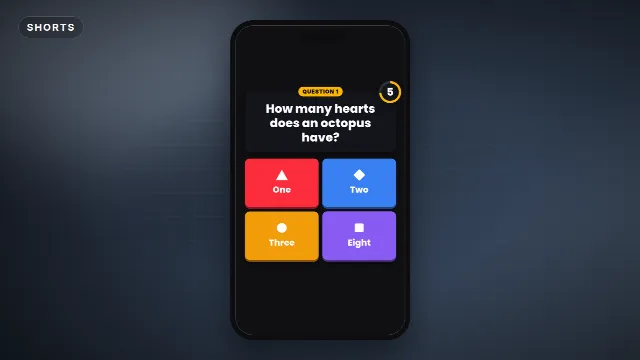
Make a status video on your phone
- Open Edit online in your phone browser. You can filter on Vertical 9:16 to see only templates in that size.
- Open a template and type your text. The preview updates as you type. Change the colors and the font if you like.
- Under Size, choose Vertical (9:16).
- Tap Create my video. It is made on our server, which usually takes less than a minute.
- Tap Download .mp4. On a phone you get the green screen .mp4, which you can open in your editing app.
Videos are free to make and download with a free account.
Put it over your photo in CapCut
The downloaded video is your animation on a solid green background. You put it over a photo or clip of your own and remove the green. In CapCut:
- Start a new project with your photo or clip. For a photo, make it as long as you want the status to be.
- Set the project to 9:16 so it fills the screen.
- Tap Overlay → Add overlay and pick the green screen .mp4. Stretch it to cover the whole frame.
- With the overlay selected, tap Cutout → Chroma key, pick the green and raise Intensity until the green is gone.
- Export the video. It is saved to your phone.
Other phone editors like VN, KineMaster and Alight Motion also have a chroma key option. The full steps, and how to fix green edges, are in how to use green screen overlays in CapCut. No photo? Put a plain colored background or a soft blurred picture behind the overlay in your editor.
Share it to your status
- Open WhatsApp and go to the status section. On newer versions it is in the Updates tab.
- Tap to add a new status and choose the video you exported from your gallery.
- Check the start and end of the video, add a caption if you want, and send it.
Watch your status once yourself to check that the text is readable and not covered by your name at the top or the reply box at the bottom.
Tips for a better status
- One message. A greeting or an offer, not both in one video.
- Short words. Three to six words on screen at a time are easy to read on a small phone.
- Strong contrast. White text on a dark card, or dark text on a white bar, reads on any photo.
- Avoid green in your design. Green parts disappear with the chroma key. Pick other accent colors before you create the video.
- Reuse it. The same vertical video works on Instagram Stories, Reels and YouTube Shorts. See text overlays for TikTok, Reels and Shorts.
More vertical templates: Shorts and vertical templates, text titles, Christmas templates and CapCut templates.
Frequently asked questions
Edit online
Make your status video now
Free with a free account, in 16:9, 9:16 or 1:1.
Greetings, offers, quotes and countdowns with your own words, in vertical 9:16.
Edit online for free