
Edit online
Make it in your browser, free
Type your text, download the video. No app needed.
On this page · 8 sections
A cinematic trailer title is the card between the shots of a trailer: a dark frame, a flash of light, a low boom and a few wide letters that slowly push toward you. You can make one for free in the browser, without After Effects: type your text into the Cinematic Trailer Title, pick a color and a font, and download a transparent video for Premiere Pro, DaVinci Resolve or CapCut. This guide explains what makes a title feel like a movie, which templates to use, how to structure a short trailer and how to edit it all together.
What makes a title feel like a movie trailer
Trailer titles look expensive, but they follow a handful of simple rules:
- A dark background. The title usually sits on black or on a very dark shot, so the light in the letters stands out.
- A slow reveal. The text fades or focuses in over a second or two and keeps drifting. Nothing pops or bounces.
- Light. A flash, a lens flare or a glint running across the letters gives the title a moment.
- A low booming sound. The boom lands exactly when the title appears. Without sound, half of the effect is gone.
- Short words. One to three words per card: "This summer", a name, a date. Never a sentence.
- Wide letter spacing. Capitals with lots of space between the letters read as calm and serious.
- Letterbox bars. Black bars at the top and bottom make any video look wider, like a cinema screen.
If you need a general title for a YouTube video rather than a trailer, see animated text titles for YouTube videos, which compares kinetic, glitch, retro and other styles.
Templates for a trailer title
Cinematic Trailer Title
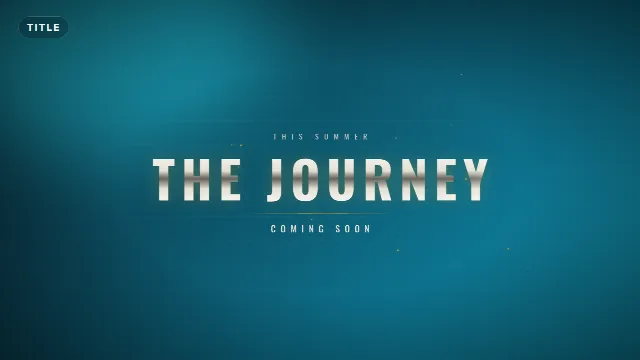
The Cinematic Trailer Title follows almost every rule above. A horizontal light flash opens the frame, your title appears out of it in wide metallic letters that tighten and push slowly toward the camera, embers float up, a glint runs across the letters and a bottom line fades in under a thin rule. You fill in a top line (up to 30 characters, "This summer" by default), the title (up to 18) and a bottom line (up to 30, "Coming soon"). It lasts 6 seconds and comes with a deep boom as the title appears, a shimmer on the glint and a whoosh as it leaves.
Free template
Cinematic Trailer Title
Cinematic Blur Title
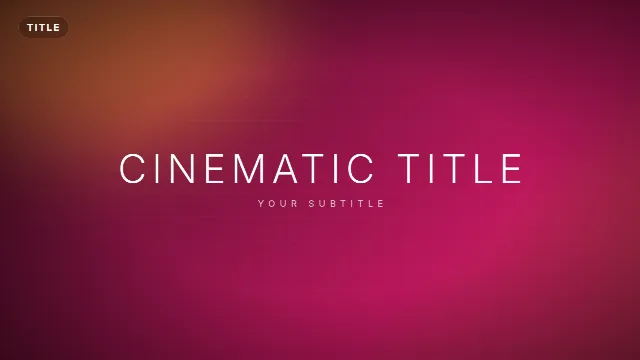
The Cinematic Blur Title is quieter: a thin title focuses in from a blur while the letter spacing tightens. It has a title and a subtitle (each up to 32 characters) and runs for 5 seconds. Use it for short films, documentaries and the softer cards in a trailer, such as a quote or a credit.
Free template
Cinematic Blur Title
Cinematic Lens Flare Logo Reveal
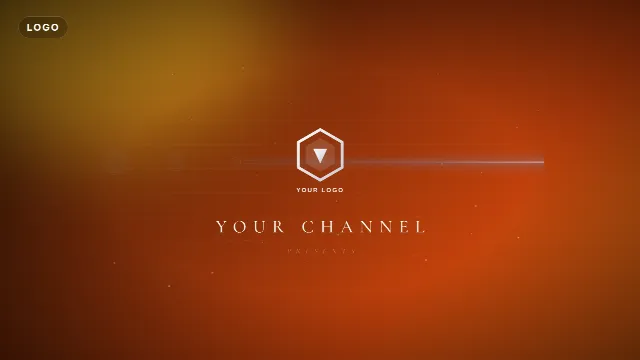
The Cinematic Lens Flare Logo Reveal is the "studio presents" card at the start. An anamorphic lens flare sweeps across a dark frame with floating dust, uncovers your logo and then your name in spaced out serif letters, with a tagline such as "Presents". It is 6 seconds long with a low boom and a flare whoosh.
Free template
Cinematic Lens Flare Logo Reveal
Chapter Title
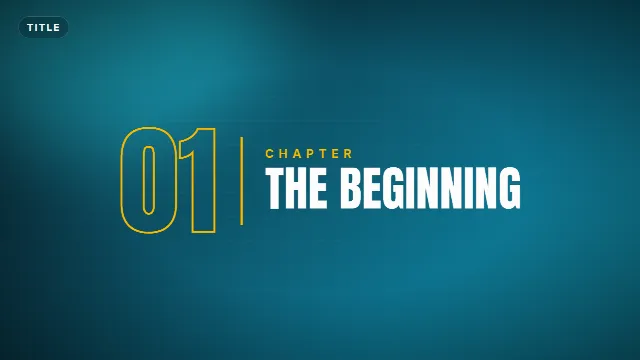
For a longer film or a series, the Chapter Title shows a big outlined number, a label and a title, such as "01 Chapter The beginning". It is 5 seconds long and works well between the acts of a short film.
Free template
Chapter Title
Cinematic templates on Velosofy
 00:11
FREE EPIC INTRO TEMPLATE | BLENDER |
 00:10
[Template Nr 12.1]- Epic particle Blender intro template V2 | My best? | Only Blender
 00:10
FREE EPIC INTRO TEMPLATE! (60 FPS!) | Blend/Ae (MY BEST??) | HAPPY NEW YEAR!
 00:11
Epic Free Chill Blender Intro Template|Download Link in Description|By NexidiusFX|Blender
Make your title in the browser
- Open the Cinematic Trailer Title, or browse Edit online.
- Type the top line, the title and the bottom line. The live preview updates as you type.
- Pick the accent color (the flash, embers and rule) and the text color. Warm amber is the classic trailer look, cold blue feels like a thriller.
- Choose a font. Oswald is the default; Anton and Bebas Neue are also good trailer fonts.
- Leave the animation speed at normal or slow it down a little for a heavier feel.
- Choose a size: 16:9 landscape for YouTube, 9:16 vertical for a TikTok or Reels teaser, or 1:1 square.
- Create the video. It renders on our server in about a minute.
The download has a transparent -alpha.mov for desktop editors and a -greenscreen.mp4 for
phone apps. Because the background is transparent, the title is not stuck on black: you choose what goes under it.
Avoid a green accent color, since it would be keyed out together with the green screen.
Videos are free to make and download with a free account.
Structure a short trailer
Most trailers alternate between clips and title cards. A 30 to 60 second teaser for a short film, a travel video, a launch or a channel trailer can follow this pattern:
| Part | What is on screen | Template |
|---|---|---|
| Opening | Your logo or name, "presents" | Cinematic Lens Flare Logo Reveal |
| Setup | Two or three calm clips | Your footage |
| Card 1 | "This summer" | Cinematic Blur Title |
| Build up | Faster clips as the music grows | Your footage |
| Card 2 | "One journey" or a short line | Cinematic Blur Title |
| Climax | The best shots, cut on the beat | Your footage |
| Title | The name, with the date or "Coming soon" | Cinematic Trailer Title |
Keep the big title for the end, it is the payoff. Use the same font and color on every card so the trailer feels like one piece. And use music you have the rights to: royalty free trailer music is easy to find, while songs and clips from real movies are copyrighted.
Edit it in Premiere Pro
- Import the
-alpha.mov. For a black title card, put it on an empty part of the timeline or over a black color matte. To show it over footage, drag it onto V2 above your clip. - Time it on the beat: the boom of the Cinematic Trailer Title is 0.6 seconds into the clip, so line that point up with a hit in your music.
- For letterbox bars, add an adjustment layer on top of everything and use the Crop effect with the same value on Top and Bottom. About 12 to 13 percent each gives the wide 2.39:1 cinema look in a 16:9 video.
Edit it in DaVinci Resolve
- Import the
-alpha.movand place it on Video 2 above your footage, or on its own over an empty track for black. - If you see black instead of your footage, open Clip Attributes on the clip in the Media Pool and set the alpha mode to Straight.
- For letterbox bars, use Timeline → Output Blanking and pick 2.39. Check that the top and bottom lines of the title are not hidden by the bars.
Edit it in CapCut
- Add the
-greenscreen.mp4with Overlay → Add overlay and stretch it to fill the frame. - Tap Cutout → Chroma key, pick the green and raise Intensity until it is gone.
- Move it so the flash and boom land on a beat. For a black card, put it over a black background instead of a clip.
- For letterbox bars, search the effects for "letterbox" or "cinema", or add two black bars as overlays.
More detail in how to use transparent video overlays and how to use green screen overlays in CapCut.
Tips for a title that feels like cinema
- Let it breathe. Give each card a moment of darkness or a slow shot before and after it.
- Let the boom do the work. Turn the music down slightly when the title hits, so the boom is felt.
- Darken busy footage. If the title sits over a bright shot, lower the exposure of the clip under it.
- Keep it short. The title field takes 18 characters for a reason: one or two big words read best.
- Vertical teasers too. Render the 9:16 size for TikTok, Reels and Shorts instead of cropping the landscape version.
More ideas: cinematic templates, text and title templates and how to make a logo reveal intro.
Frequently asked questions
Edit online
Make your trailer title online
Free with a free account, in 16:9, 9:16 or 1:1.
Type your title, pick a color and font, and download a transparent trailer title with the boom built in.
Edit the trailer title