
Edit online
Make it in your browser, free
Type your text, download the video. No app needed.
On this page · 11 sections
A good YouTube intro is short, branded and the same in every video, so viewers recognize your channel in a second. CapCut is one of the easiest ways to make one: it runs on your phone and computer, has text animations and keyframes built in, and exports straight to a YouTube-ready video. Here is how to make a clean intro in CapCut, step by step.
Plan the intro first
Before you open the editor, decide on three things:
- Length: three to five seconds. Long intros cost you viewers.
- What it shows: your logo or channel name, maybe a tagline. One idea, not three.
- The sound: a short whoosh, hit or musical sting that you can use every time.
Many creators skip the classic intro altogether and open with a hook instead, with a quick branded moment a few seconds in. That works especially well for Shorts, see how to hook viewers in the first second.
Step 1: create a project
Start a new project in CapCut and set the aspect ratio to 16:9 for regular YouTube videos. Add a background first: a solid color, a gradient or a short background video. This becomes the bottom layer of your intro.
Step 2: add your logo
Import your logo as an image, ideally a PNG with a transparent background, and place it as an overlay on top of the background. Scale it so it fills about a third of the screen width and center it.
Step 3: animate it
CapCut gives you two ways to animate:
In animations
Select the logo and pick an in animation such as a zoom or fade. This is the fastest option and looks clean with almost any logo.
Keyframes
For more control, add keyframes for position, scale and opacity. A simple and professional move: the logo starts at 80 percent scale and fully transparent, and grows to 100 percent and fully visible in half a second. Add easing so it does not move like a robot.
Step 4: add text
Add your channel name or tagline under the logo with a text animation. Use the same font as your banner and thumbnails, consistency is what makes a brand.
Step 5: sound
Add a short sound effect on the moment the logo lands. Sound makes an intro feel finished, even if the animation is simple. Only use sounds you are allowed to use, CapCut's built-in library is a safe place to start for many uses, but check the terms for commercial channels.
Step 6: export and reuse
Export at 1920×1080, 30 or 60 fps. Save the intro as a separate video file, so you can drop it into every new project instead of rebuilding it.
Faster: start from a template
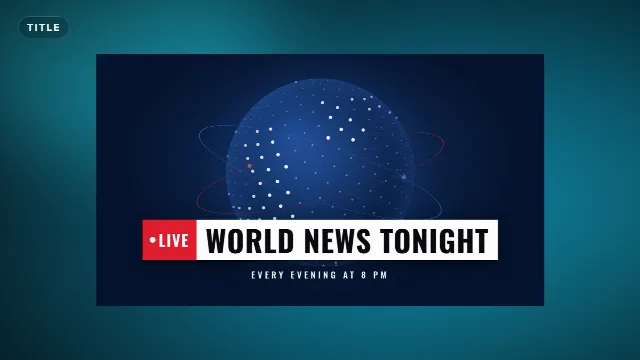
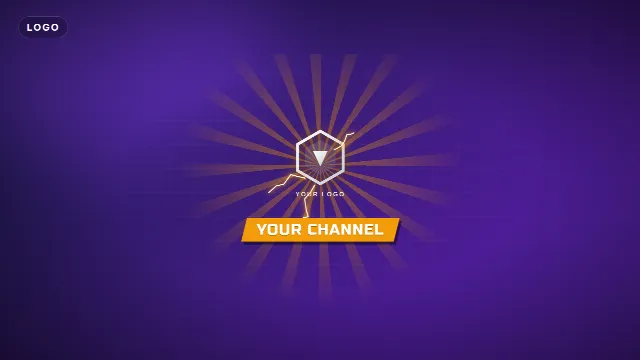
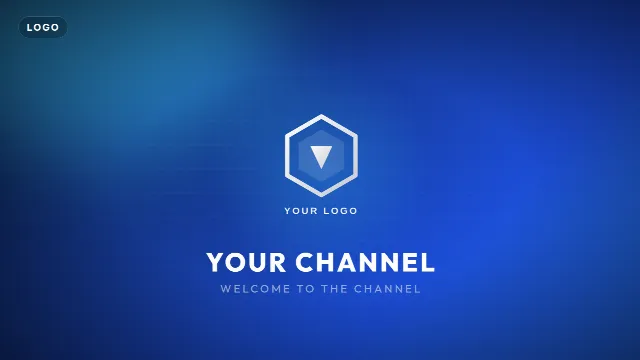
If you want something more advanced than a logo and some text, start from a ready-made intro. Templates made for CapCut can be edited directly, and intros made in other software can be rendered to a video and imported. Browse the intro templates, logo reveals and text and title animations.
Popular intro templates right now


Ideas for simple animations that look good
- Scale and fade: the logo grows slightly while it fades in, then holds still.
- Mask reveal: the logo is revealed from left to right behind a moving shape.
- Text typewriter: your channel name appears letter by letter under the logo.
- Light sweep: a soft light passes over the logo once it has landed.
- Glitch hit: a short glitch on the beat, popular for gaming channels, see glitch templates.
Keep it to one or two of these. Combining everything at once is the quickest way to make an intro look busy.
Make a matching outro
Duplicate your intro project and turn it into an end screen: the same background and logo, with space for YouTube's end screen elements (subscribe button and video suggestions). Browse outro templates and subscribe buttons for inspiration.
Intro checklist
| Check | Why |
|---|---|
| 3 to 5 seconds | Keeps viewers watching |
| Logo readable on a phone | Most YouTube views are on mobile |
| Same fonts and colors as your channel | Builds recognition |
| A sound on the key moment | Makes simple animation feel finished |
| Exported once, reused everywhere | Saves time on every upload |
Prefer a desktop tool with more depth? Read how to use After Effects templates or see the best free intro templates.
Frequently asked questions
Edit online
Start your intro from a template
Free with a free account, in 16:9, 9:16 or 1:1.
Free intro templates for CapCut, After Effects, mobile editors and more.
Browse intro templates