Edit online
Make it in your browser, free
Type your text, download the video. No app needed.
On this page · 8 sections
To add a countdown timer to a video, make the timer as a separate clip with a transparent background, put it on a track above your footage and line up its first second with the moment the countdown should start. You can make one for free in the browser: open a timer template on Edit online, type your label, pick your colors and download it. This guide shows which timer fits which video, how to place it in your editor and how to keep the count accurate.
Where a countdown helps
- Shorts and TikToks: "Guess before the timer ends" keeps people watching to the end.
- Quizzes: a few seconds to think, then the answer.
- Intros: a 5, 4, 3, 2, 1 before a reveal, a drop or a race.
- Streams: the last seconds before you go live or come back from a break.
- Challenges: "10 seconds to name three...", a plank, a speed run.
- Rankings: a top 5 that counts down to number one.
Which template for which video
| Video | Template | What you can change |
|---|---|---|
| Challenges, breaks, "back in 10" | 10 Second Timer | Label, accent, text and background color, font |
| Intros and reveals | Countdown 5 to GO | Label, final word, accent and text color, font |
| A quick 3, 2, 1 in a landscape video | Ring Countdown 3-2-1 | Accent and text color, font |
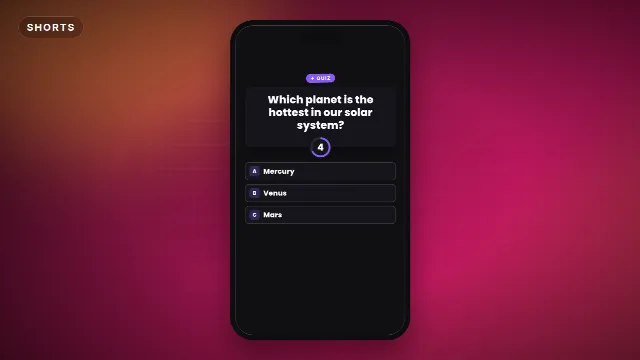
| Trivia Shorts | Quiz Question With Timer | Question, three answers, which one is correct, colors, font |
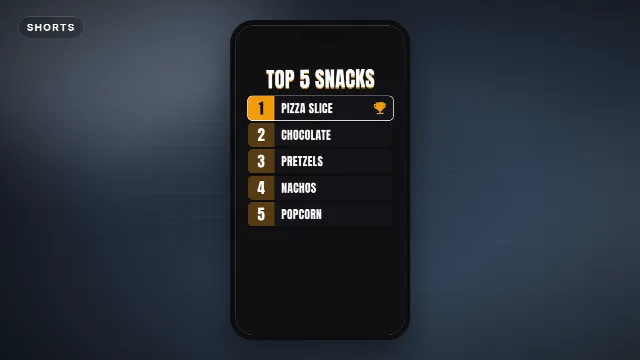
| Top 5 lists | Top 5 Ranking Countdown | Title, five entries, colors, font |
| Gaming, "loading next level" | Loading Progress Bar | Label, colors, font |
| Before a stream starts | Starting Soon Stream Screen | Logo, badge, title, a line of text, colors, font |
A few details worth knowing before you pick one:
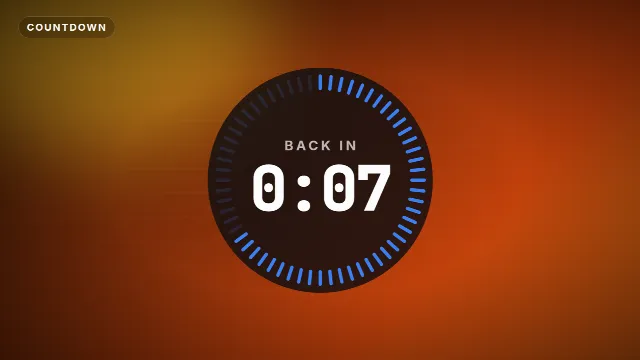
- The 10 Second Timer shows a digital clock from 0:10 to 0:00 inside a ring of 60 ticks that switch off as time runs out. It ticks every second, beeps on the last three and ends on a long beep.
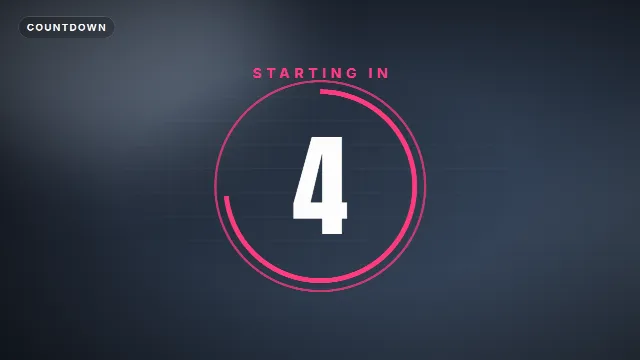
- Countdown 5 to GO counts 5 to 1, one number per second, inside a ring that empties, and ends on your own final word ("GO!" by default, or "DROP", "FIGHT", "NOW").
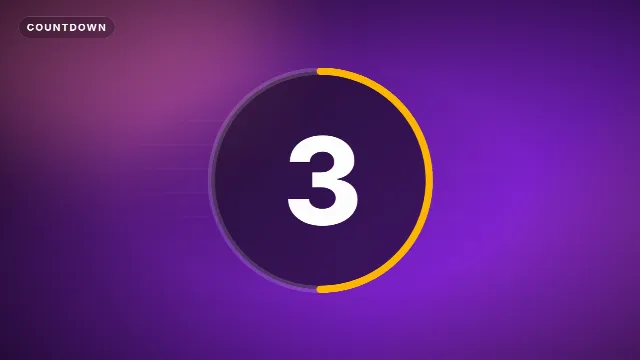
- Ring Countdown 3-2-1 is the shortest, about four seconds, and always ends on "GO!". It is made for 16:9 only.
- Quiz Question With Timer gives viewers a 5 second countdown ring, then lights up the right answer and fades the others.
- The Starting Soon screen has a loading bar, not a clock. It loops seamlessly, so it can run for as long as you need.
More countdown templates


Make your timer online
- Open the template, for example the 10 Second Timer.
- Type your label. Short works best: "Back in", "Guess now", "Round 2".
- Pick an accent color, a text color and, where there is one, a background color. Choose a font from the 38 available.
- Choose the size: 16:9 for YouTube, 9:16 for Shorts, TikTok and Reels, 1:1 for square posts.
- Create the video. It renders on our server in about a minute. With a free account you download a zip with a transparent
-alpha.mov, a-greenscreen.mp4and the sound as a separate WAV.
Videos are free to make and download with a free account. The timers are free to use in personal and commercial videos.
Keep the speed at 1 for a real timer
Every template has an Animation speed slider. It speeds up or slows down the whole clip, the clock too. At a speed of 1.5, the 10 second timer is over in under seven seconds. That is fine for a quick visual countdown, but for a challenge or a quiz where the seconds should be real, leave the speed at the default of 1.
Add it in your editor
Premiere Pro, DaVinci Resolve, Final Cut Pro
- Import the
-alpha.movand drop it on a track above your footage. - Move it so the first number appears exactly where the countdown should start, for example right after you ask the question.
- Scale and move it into a free corner if it should not cover your video.
CapCut, Alight Motion, KineMaster
- Add the
-greenscreen.mp4as an overlay and stretch it to fill the frame. - Remove the green with Chroma key.
- Line up the start with the moment the countdown begins.
Need help with either file type? Read how to use transparent video overlays or how to use green screen overlays in CapCut.
OBS Studio
Add the -alpha.mov as a Media Source in your starting soon or break scene. Turn off
looping for the timer so it plays once, and switch to the scene a few seconds before you go live. Leave the
Starting Soon screen on loop in the same scene behind it. More in
starting soon and be right back screens for OBS.
Timing tips
- Start the count on the cue. The first tick should land when you finish the question or the challenge, not while you are still talking.
- Cut to the answer at zero. Let the final beep play, then show the result straight away. A pause after zero feels like a mistake.
- Mind the music. If your background music is loud, the ticks can get lost. Turn the music down during the countdown, or lower the WAV of the timer if it is too strong.
- One countdown per moment. Two timers on screen at once confuse people.
Design tips
- Big and central for quizzes, small and in a corner for challenges where the action matters more than the clock.
- A monospace or condensed font keeps the digits from jumping around as they change.
- High contrast: light digits on a dark background color, or the other way around. Use the accent color for the ring, not for the numbers.
- Vertical videos: keep the timer in the middle third of the screen. The bottom and right side are covered by captions and buttons. See text overlays for TikTok, Reels and Shorts.
- Avoid green in your colors when you use the green screen file, or the chroma key will remove parts of the timer.
Quiz and ranking Shorts
A countdown is the engine of most quiz Shorts. The Quiz Question With Timer already includes the question, three answers, the 5 second ring and the answer reveal, so one clip is one question. Make a few with the same colors and font, and cut them back to back for a full quiz. Want another format? Try True Or False Quiz, Four Answer Quiz Game or Guess The Word Quiz.
For a list video, the Top 5 Ranking Countdown fills a ranking board from number 5 up to number 1, with a trophy for the winner. Use it as the opening summary or as the final reveal.
Checklist
- Right template for the format, in the right size
- Animation speed at 1 if the seconds must be real
- First tick lined up with the question or cue
- Answer or result right after zero
- Readable on every shot, inside the safe area
Browse more Shorts templates, intros and countdowns.
Frequently asked questions
Edit online
Make your countdown online
Free with a free account, in 16:9, 9:16 or 1:1.
Type your label, pick colors and a font, download a transparent timer.
Open the 10 Second Timer