Edit online
Make it in your browser, free
Type your text, download the video. No app needed.
On this page · 7 sections
The last seconds of a YouTube video decide whether a viewer leaves or watches another one of yours. That is what end screens are for: clickable video suggestions and a subscribe button that YouTube shows on top of the end of your video. They work much better when the video itself is designed for them. This guide covers the rules, a layout that works, and how to use an end screen template that lines up with the elements.
How YouTube end screens work
You add end screen elements in YouTube Studio, under the video's editor. The elements are clickable boxes that YouTube draws on top of your video. Your video provides the background and the design around them. The rules:
| Rule | Detail |
|---|---|
| Length | 5 to 20 seconds, at the end of the video |
| Minimum video length | 25 seconds |
| Elements | Up to 4 |
| Element types | Video or playlist, subscribe, channel, link (Partner Program only) |
| At least one | Video or playlist element |
| Shape | Regular 16:9 videos, not Shorts |
A video element can show a specific video, your most recent upload, or a video YouTube picks as best for the viewer. The subscribe element is a circle with your channel icon.
A layout that works
Most successful end screens use the same simple structure:
- One or two video slots, side by side or stacked, in 16:9 boxes.
- A subscribe circle next to or below them.
- A short title like "Thanks for watching" or "Watch this next", away from the slots.
- A calm background, so the elements stand out. Moving footage behind the slots is distracting.
Keep the slots away from the very edges of the frame. YouTube lets you place elements almost anywhere, but players on phones and TVs crop or cover the edges slightly.
Use an end screen template
An end screen template is an animation with placeholders exactly where the elements go. In YouTube Studio you then drag each element onto its placeholder. On Edit online you can customize these for free:
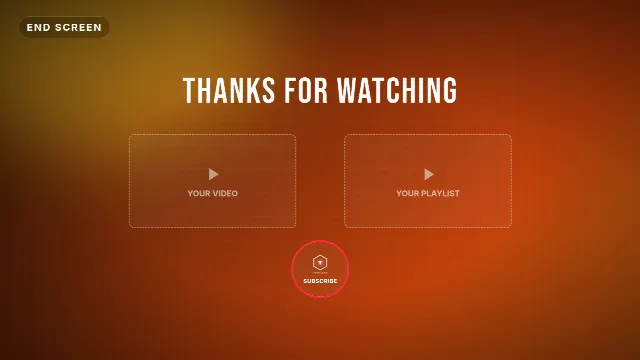
- Thanks For Watching End Screen: a title with placeholders for a video, a playlist and the subscribe element.
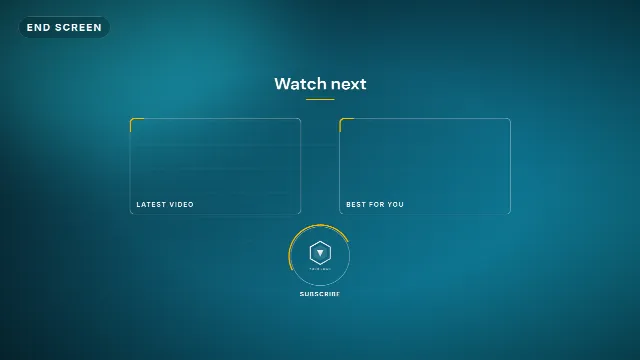
- Minimal End Screen: thin outlined slots and a subscribe circle, clean and quiet.
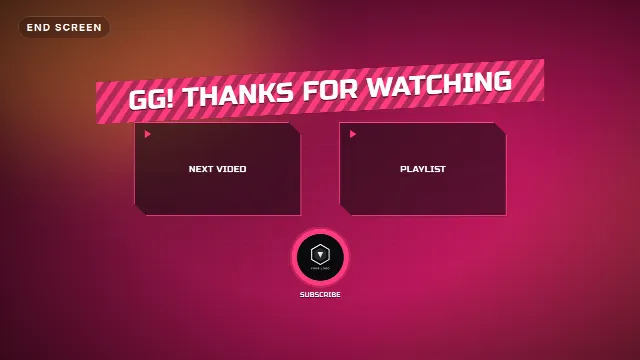
- Gaming End Screen: a striped banner, angular slots and a pulsing subscribe circle.
Change the title, the labels of the slots (for example "Next video" and "Playlist"), the accent and text colors, the font and the speed, and watch the live preview. Pick the landscape 16:9 size, since end screens only exist on regular videos. Create the video, which takes under a minute, and download it with a free account.
Outros and end screens


Step by step
- Add the template to the end of your video in your editor. The zip has a transparent
-alpha.movfor desktop editors and a-greenscreen.mp4for CapCut and other phone apps. Put a background or a still of your video underneath. - Make it last long enough. 20 seconds gives viewers the most time to click. If the animation is shorter, hold the last frame (a freeze frame or frame hold in your editor) until the video ends.
- Talk over it. Point at the next video: "if you liked this, watch this one next". A spoken reason to click works better than the boxes alone.
- Export and upload as usual.
- In YouTube Studio, open the video, go to Editor → End screen, add your elements and drag each one onto a placeholder. Match the timing so the elements appear when the slots are on screen.
- Reuse it. For your next video, use Import from video in the end screen editor to copy the same layout.
Thanks for watching variants
- Watch next: one big video slot and a subscribe circle, for series and tutorials where the next step is obvious.
- Two choices: your latest upload and a playlist, the default for most channels.
- Community: a short thank you to members or supporters with a link element, if you have access to links.
- Gaming: "GG, thanks for watching" with the next episode of the playthrough.
Common mistakes
- A long goodbye before the end screen. Many viewers leave as soon as the content is over. Start the end screen right after your last point.
- Placeholders that do not match. If the slots in your video and the elements in Studio are not lined up, it looks broken. Check on the uploaded video.
- Busy backgrounds. Moving footage behind the slots makes them hard to see.
- A subscribe reminder only at the end. Remind people earlier too, see how to add a subscribe button.
Match it with your intro
Use the same colors and font as your intro and thumbnails, so the end screen feels like part of your channel. See how to make a YouTube intro in CapCut and the banner and thumbnail size guide.
Browse all outro templates, end screen templates and subscribe animations.
Frequently asked questions
Edit online
Make your end screen online
Free with a free account, in 16:9, 9:16 or 1:1.
End screens with your text and colors, with slots that line up with YouTube elements.
Edit online for free