
Edit online
Make it in your browser, free
Type your text, download the video. No app needed.
On this page · 9 sections
A short animated subscribe button is one of the simplest ways to remind viewers to subscribe without breaking the flow of your video. A cursor clicks the button, the bell rings, and you move on. This guide shows where to get one with your own channel name on it, how to add it in CapCut and Premiere Pro, and when to show it so it helps instead of annoys.
What you need
A subscribe animation is an overlay: it sits on a layer above your footage. For that to work, the file needs one of two things:
- A transparent background (an alpha channel). Desktop editors like Premiere Pro, DaVinci Resolve and Final Cut Pro read this directly from a ProRes 4444 .mov file.
- A solid green background that you remove with a chroma key. This is the version for CapCut, Alight Motion, KineMaster and other phone apps.
Our free Edit online templates give you both in one zip: a
-alpha.mov with transparency and a -greenscreen.mp4, plus a short README.
Step 1: make the button yours
A generic subscribe button works, but one with your channel name, your colors and your font looks like part of your brand. On Velosofy you can customize these in the browser:
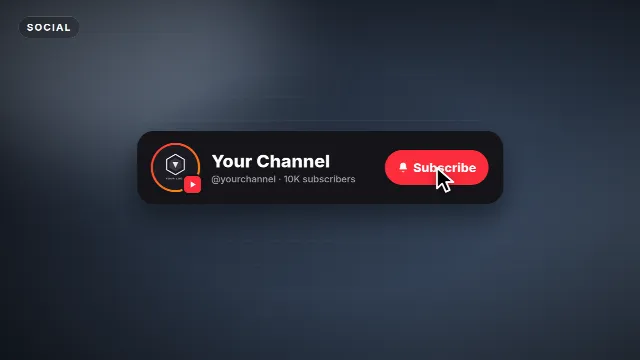
- YouTube Subscribe Card: a channel card with your name, a second line such as your handle, and a subscribe button that gets clicked.
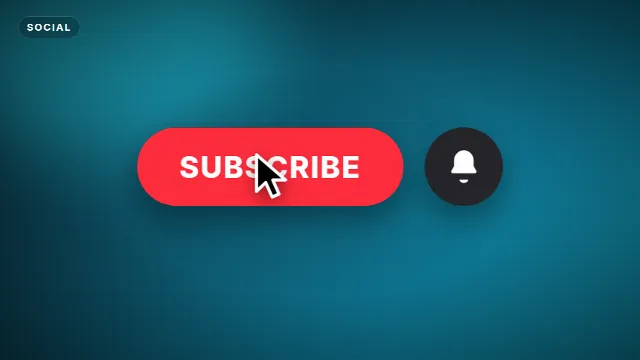
- Subscribe Button Click: just the button and the click, in your accent color.
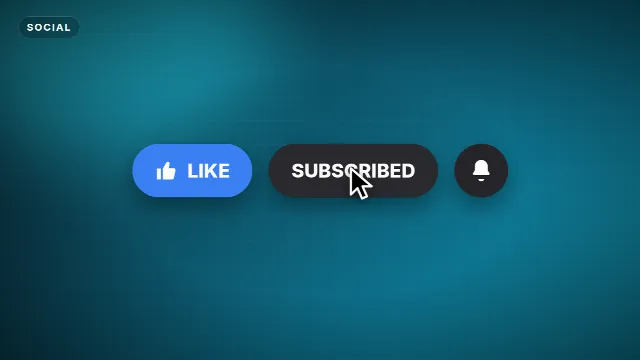
- Like, Subscribe and Bell: the classic three-step reminder.
- Glass Subscribe Card: a frosted card that sits well on top of busy footage.
Open a template, type your text, pick the accent, text and background colors, choose a font and set the animation speed. The preview updates as you edit. Some templates also let you place the card left, center or right, so it does not cover your face. Choose a size (16:9 for regular videos, and 9:16 or 1:1 where the template offers them), then create the video. It renders on our server in under a minute and you need a free account to download it.
Subscribe animations on Velosofy


Step 2: add it in CapCut
On a phone, use the -greenscreen.mp4 file from the zip.
- Open your project and move the playhead to where the button should appear.
- Tap Overlay → Add overlay and pick the green screen video.
- Pinch the overlay so it fills the frame. It is a full frame video, so the button lands in the right spot when the overlay covers the whole screen.
- With the overlay selected, tap Cutout → Chroma key, drag the color picker onto the green and raise Intensity until the green is gone. Add a little Shadow if the edges look rough.
In CapCut on desktop, drag the video onto a track above your footage and find Chroma key under Video → Remove BG. More detail, and fixes for green edges, in how to use green screen overlays in CapCut.
Step 3: add it in Premiere Pro
On a computer, use the transparent -alpha.mov file.
- Import the .mov into your project.
- Drag it onto V2 (or any track above your footage) at the moment you want it.
- That is it: the background is already transparent, so your video shows through.
If you see a black box instead, read the troubleshooting part of how to use transparent video overlays. DaVinci Resolve and Final Cut Pro work the same way: put the .mov on a track above your video.
Timing: when to show the button
The animation is the easy part. When you show it matters more. People subscribe when they feel the channel will give them more of what they just got. Some practical rules:
- Not in the first seconds. Nobody subscribes before they know what the video is. Open with your hook, see how to hook viewers in the first second.
- After a payoff. Right after a useful tip, a good joke or the reveal of a result is a natural moment.
- Once or twice per video. One reminder early on and one on the end screen is plenty for most videos.
- Say it too. A short spoken line ("if this helped, subscribe for the next one") with the animation works better than either on its own.
- Add a click sound. A soft click and a bell sound on the moment of the tap make the animation feel finished.
Placement and size
| Video type | Where to put it |
|---|---|
| Talking head | The side opposite your face, in the lower third of the frame |
| Gameplay | Away from the minimap, health bar and chat |
| Tutorial or screen recording | A quiet corner, never over the thing you are explaining |
| Shorts and vertical | The middle of the screen, above the captions and buttons of the player |
Keep it readable on a phone. If the channel name is hard to read on a small screen, make the text shorter rather than the card bigger.
Vertical videos and Shorts
For Shorts, choose a vertical 9:16 size before you render, so the card is placed for a phone screen. The Follow For More and Like Share Save Buttons templates are made for the vertical feed. Tips for text placement are in text overlays for TikTok, Reels and Shorts.
Do not forget the end screen
The last seconds of a video are where YouTube lets you add a clickable subscribe element. Pair it with an end screen animation that leaves room for it, see the YouTube end screen template guide.
Checklist
- Your channel name and colors on the button
- Transparent .mov for desktop editors, green screen .mp4 for phone apps
- Shown after a payoff, not in the opening seconds
- Placed where it does not cover your face or the important part of the frame
- A click sound on the tap
Find more in subscribe templates, outros and templates for CapCut and Premiere Pro.
Frequently asked questions
Edit online
Make your subscribe button online
Free with a free account, in 16:9, 9:16 or 1:1.
Type your channel name, pick colors and download a transparent subscribe animation.
Edit online for free