
Edit online
Make it in your browser, free
Type your text, download the video. No app needed.
On this page · 8 sections
A breaking news video borrows the look of TV news: a red alert flashing over the screen, a dramatic sting, a serious headline bar and a ticker scrolling underneath. It works for real news, but it is even more popular for everything else: a funny announcement, news about your channel, or a school project. Viewers know the format in a second, which is exactly why it grabs attention in a feed. This guide shows the parts of a breaking news video, the templates for each part, and how to put it together in CapCut or Premiere Pro.
What people make breaking news videos for
- Fun announcements: a pregnancy, a new puppy, an engagement, "I passed my driving test", a birthday surprise.
- Memes and skits: "Breaking news: local man finally cleans his room", with a straight face.
- Channel news: a new upload schedule, a milestone, a collab, a giveaway winner or a break.
- Gaming news: a new season, an update, a patch that changes everything.
- School projects: a class news broadcast, a history event reported "live", a science fair report.
- Small businesses: a new product, a sale or an opening, announced like a headline.
The parts of a breaking news video
A real news broadcast uses the same few graphics over and over. You only need a few of them for a short video:
- The alert: a full screen "Breaking news" flash with a sting, the first two seconds.
- The intro: your show name, for a channel or school show. Skip it in a Short.
- The headline bar: a lower third with the headline while you or your clip tells the story.
- The ticker: a strip of extra facts scrolling along the bottom.
- The ending: back to the studio, a follow card or an end screen.
News templates for each part
Breaking News Alert
The Breaking News Alert is the opening flash and the headline bar in one. Red and white bars sweep across the screen, BREAKING NEWS slams in with your headline and channel name, then a striped wipe turns it all into a banner at the bottom of the screen, over your own video. You change the big label (up to 18 characters, so "Big news" or "Update" work too), the headline (up to 64) and the channel line (up to 24), and choose whether the banner stays or the screen clears at the end. It is 8 seconds long, with a riser, a news sting and a big hit.
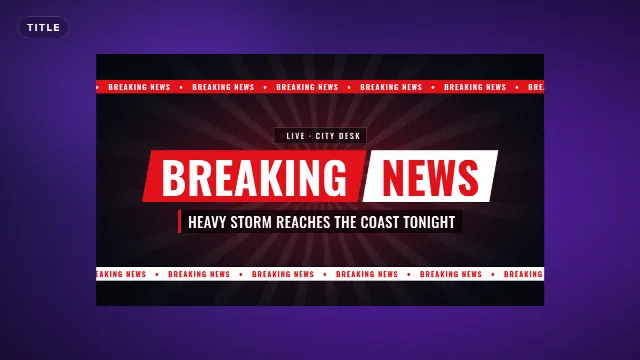
Free template
Breaking News Alert
News Intro Opener
For a show rather than a single clip, the News Intro Opener races light streaks past a spinning globe, then your show name slams in with a Live tab and a tagline. It runs for 7 seconds with its own sound. Build the whole show around it with how to make a news intro for YouTube.
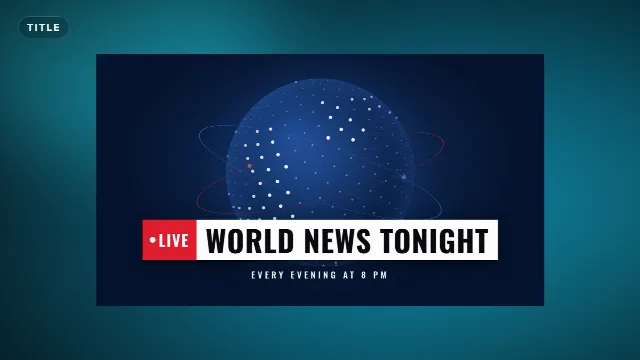
Free template
News Intro Opener
Breaking News Ticker
The Breaking News Ticker is the classic TV lower third: a blinking label, your headline and a scrolling ticker underneath. The label takes up to 18 characters, the headline up to 48 and the ticker up to 90. It wipes open with a news sting and wipes away again after 6 seconds. More in how to add a news ticker to a video.
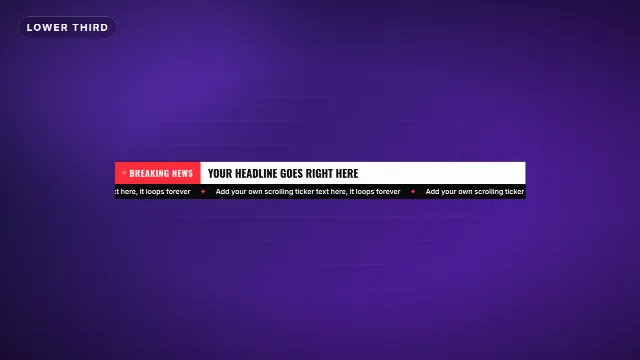
Free template
Breaking News Ticker
Live News Headline
The Live News Headline adds a blinking LIVE bug with a location and a clock in the corner, and a two line headline bar with a topic tab. Made up locations are half the fun: "LIVE · Kitchen · 7:02 AM". It is 8 seconds long.
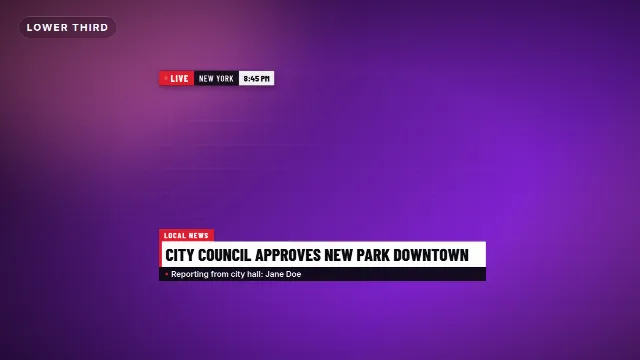
Free template
Live News Headline
Interview Name Tag
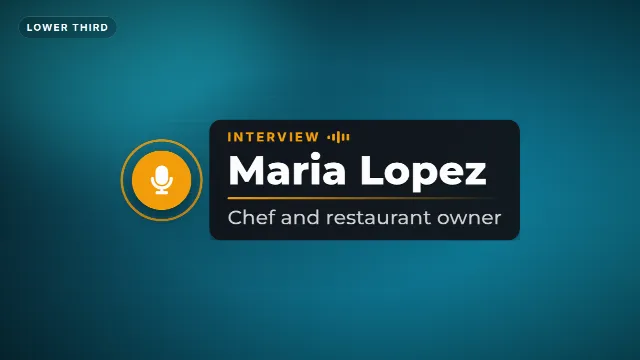
When the "reporter" or a "witness" speaks, show who it is with the Interview Name Tag. A name and a role such as "Eyewitness" or "Chief Snack Correspondent" sells the joke, or makes a school report look real. See name tags for interviews.
Free template
Interview Name Tag
Which template for which video
| Video | Use |
|---|---|
| Funny announcement or meme Short | Breaking News Alert, then the Breaking News Ticker |
| Channel news or update video | Breaking News Alert and the Live News Headline |
| Weekly news show | News Intro Opener and a headline bar per story |
| School news broadcast | News Intro Opener, Interview Name Tag and the ticker |
| Skit with a "live reporter" | Live News Headline with a made up location |
News templates on Velosofy
Make the graphics in your browser
- Open the Breaking News Alert and go to the editor on its page, or browse Edit online.
- Type the label, your headline and the channel line. Short reads best: "We got a puppy".
- Pick the accent color. Red is the classic breaking news color, navy feels calmer.
- Keep the condensed Oswald font, or pick another. Condensed fonts look the most like TV news.
- Choose the size: 9:16 for TikTok, Reels and Shorts, 16:9 for a YouTube video.
- Create the video. It renders on our server in about a minute, then you download it.
- Do the same for the ticker or the headline bar, with the same color and font.
The download has a transparent -alpha.mov for Premiere Pro, DaVinci Resolve and Final Cut Pro and a
-greenscreen.mp4 for CapCut and other phone apps, plus the sound effects as a separate WAV.
Videos are free with a free account, and your first video every month has no watermark.
Put it together in CapCut
- Start a new project with your clip (you talking, the puppy, the gameplay) and set the ratio to 9:16.
- Put the Breaking News Alert at the very start: add it with Overlay → Add overlay, stretch it to fill the frame and remove the green with Cutout → Chroma key. The flash covers the screen, then wipes away and leaves the banner over your clip.
- For extra facts, add the Breaking News Ticker as a second overlay where the story continues, key out the green, and check it sits above the captions area.
- Add captions with Text → Auto captions if you speak, so the video works without sound.
- End on a punchline, a reaction or a Follow For More card, and export at 1080p.
Green edges or a flickering ticker? The fixes are in how to use green screen overlays in CapCut.
Put it together in Premiere Pro
- Import the
-alpha.movfiles and your footage, and make a sequence in the size you rendered: 1920×1080 or 1080×1920. - Put your footage on V1 and the alert on V2 at the start. After the flash the background is transparent, so your video shows through under the banner.
- Put the ticker or a second headline on V3 where the next part of the story starts.
- Keep the out animation of every graphic. Cutting it off looks like a mistake, not like TV.
- Lower your music under the news sting, so the sound effect hits. Then export with H.264.
The same order works in DaVinci Resolve. If you see black instead of your video there, set the alpha mode of the clip to Straight in Clip Attributes. More in how to use transparent video overlays.
Tips for a breaking news video that works
Start with the alert
On TikTok and Shorts you have about two seconds before people scroll. The red flash and the sting are your hook, so put them first, not after an introduction. More hook ideas in Shorts intros and hooks.
Keep the straight face
A funny announcement is funnier when everything looks serious: a real headline style, a calm "reporter" voice, a believable ticker. "Family dog promoted to head of security" works because the graphics look official.
One headline per screen
A headline is a few words, not a sentence. Put the details in the ticker, where nobody needs to read them to follow the story.
Mind the safe area
In a vertical video, the bottom of the screen is covered by the caption and the buttons of the app. Render in 9:16 and check that the headline sits above them. See text overlays for TikTok, Reels and Shorts.
Make it clear when it is a joke
News graphics make anything look real. For skits and memes, keep the topic obviously silly and never use the format for made up news about real people or real events, so your clip is not shared as a real report.
Checklist
- The alert in the first two seconds
- One short headline, the details in the ticker
- One accent color and one font for every graphic
- Transparent .mov for desktop editors, green screen .mp4 for CapCut
- Graphics above the app buttons in 9:16, out animations intact
- Obviously a joke when it is a joke
Browse all lower thirds, intros and Shorts templates, or everything you can edit online.
Frequently asked questions
Edit online
Make your breaking news alert
Free with a free account, in 16:9, 9:16 or 1:1.
Type your headline, pick your colors and download a news alert for Shorts, TikTok or YouTube.
Edit online for free